
Have the customer’s name or the invoice number.
Find the invoice
Choose the right tab
Open Invoices. Monthly, one-shot, and work order invoices share one list.
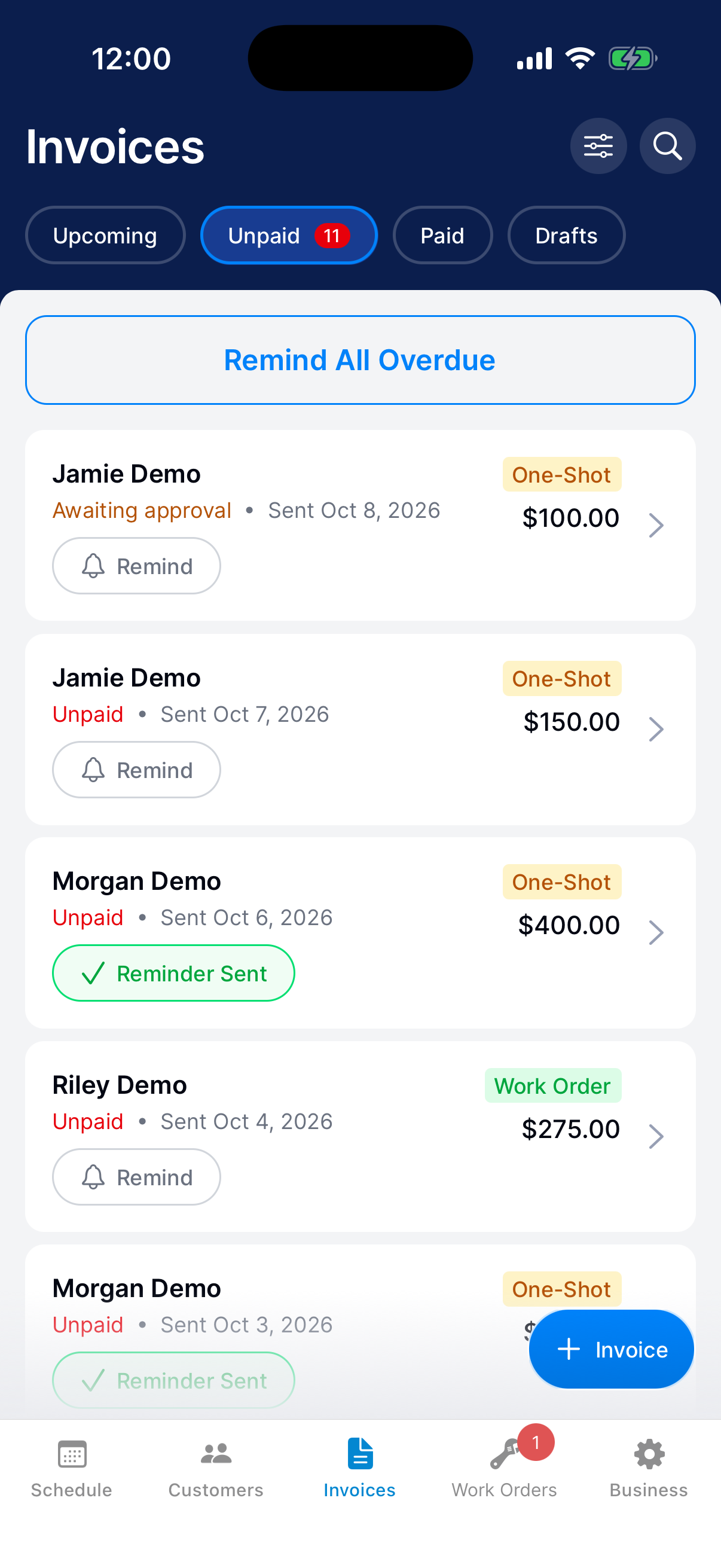
Upcoming has monthly invoices that haven’t gone out yet, with the day each one sends.
Unpaid has invoices you sent that still have a balance. The number on the tab counts them. Your type filters and Show Canceled change that count.
Paid has invoices your customers paid in full.
Drafts has invoices you haven’t sent yet, and estimates a customer rejected.
Search all invoices
Tap the search button and type the customer’s name, the invoice number, or the address.
Search covers every tab. Tap the back arrow to clear it.
Filter by type
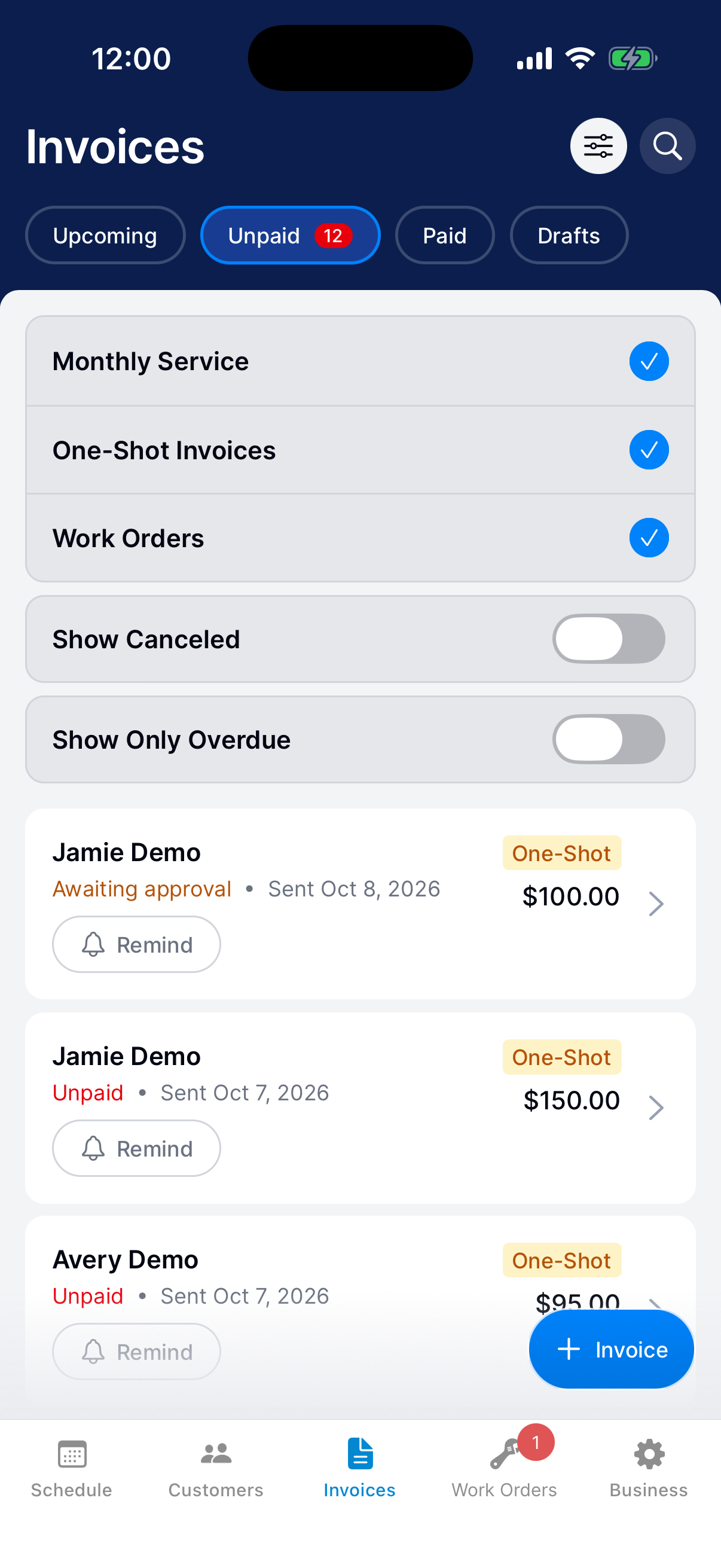
On Unpaid, Paid, or Drafts, tap the filter button. Choose Monthly Service, One-Shot Invoices, or Work Orders.
Tap the filter button again to close the filters.
Review the balance and activity
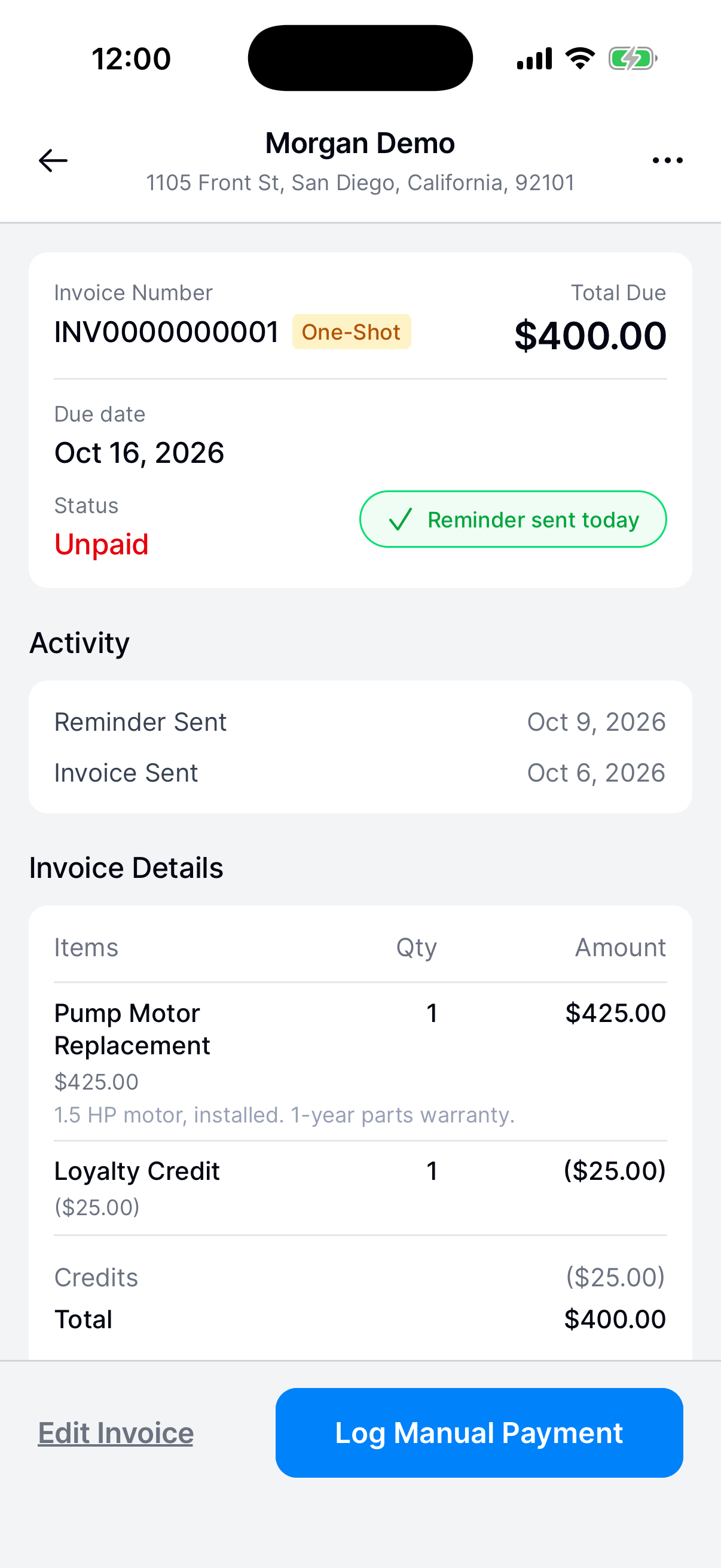
Open the invoice. The top card shows Total Due, the Due date, and the Status. An invoice past its due date shows Overdue here. The list still says Unpaid. While a card or bank payment is going through, both say Processing.
Activity lists when it was sent, each reminder and payment, and any approval or rejection. A payment reads like $50.00 paid, with how it was paid under it.
Invoice Details lists the items. If the invoice has credits, a Credits row shows above the Total.
If the customer rejected an estimate, a notice at the top shows the date and their reason.
If the customer already paid another way, use Record a payment received outside Dip before sending a reminder.
Send reminders
Find the invoice
Go to Invoices → Unpaid and find the customer.
Check previous reminders
Open the invoice and find the last Reminder Sent in Activity. A payment since then shows there too.
Tap Send Reminder
Tap Send Reminder on the invoice. The reminder goes out right away.
From the Unpaid list, you can tap Remind on the row instead.
Neither shows while a payment is Processing.
Check the result
The button changes to Reminder Sent in the list and Reminder sent today on the invoice. The reminder also shows in Activity.
Dip sends one reminder per invoice every 24 hours.
Find the overdue invoices
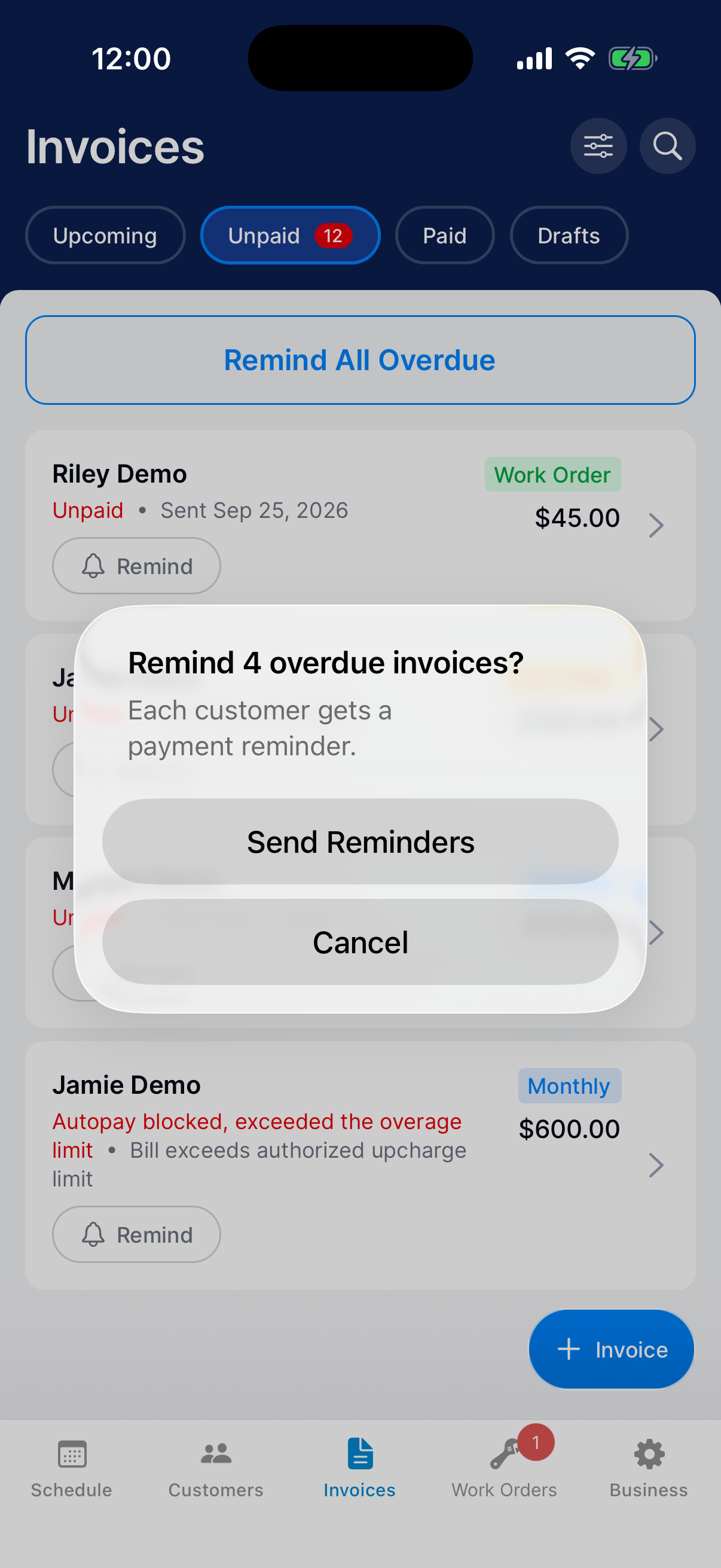
Go to Invoices → Unpaid. An invoice is overdue once its due date has passed. When any are overdue, Remind All Overdue shows at the top of the list.
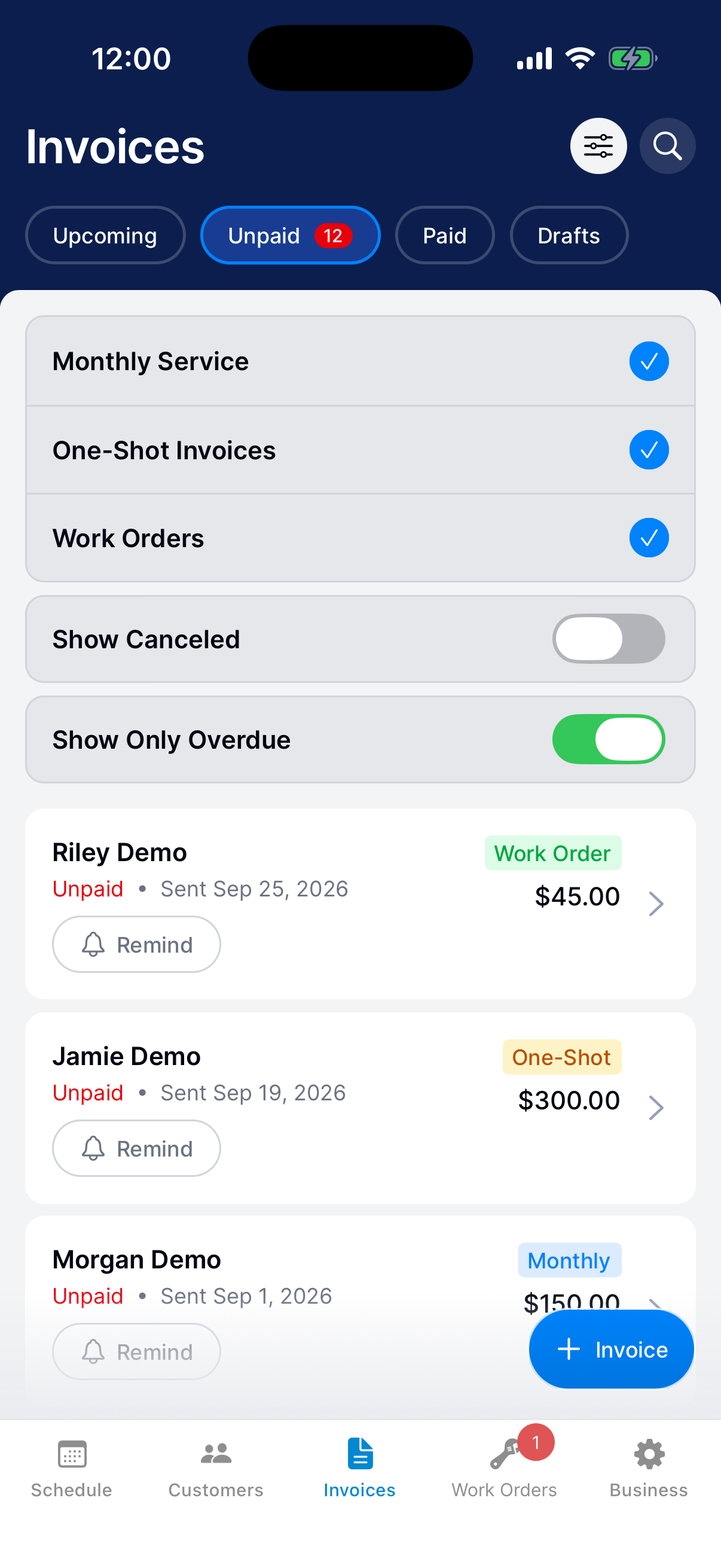
To see only those invoices, tap the filter button and turn on Show Only Overdue.
Tap Remind All Overdue
Tap Remind All Overdue, then tap Send Reminders. Dip tells you how many reminders it sent. It skips invoices already reminded today and invoices with a payment processing.
If it says All Reminded Today, every overdue customer already got a reminder.
Edit an invoice
You can edit an invoice until it’s paid in full.
Open the editor
Open the invoice and tap Edit Invoice.
In Drafts, tap the draft to open the editor right away. For a one-shot draft, see Resume a draft.
Change the items or due date
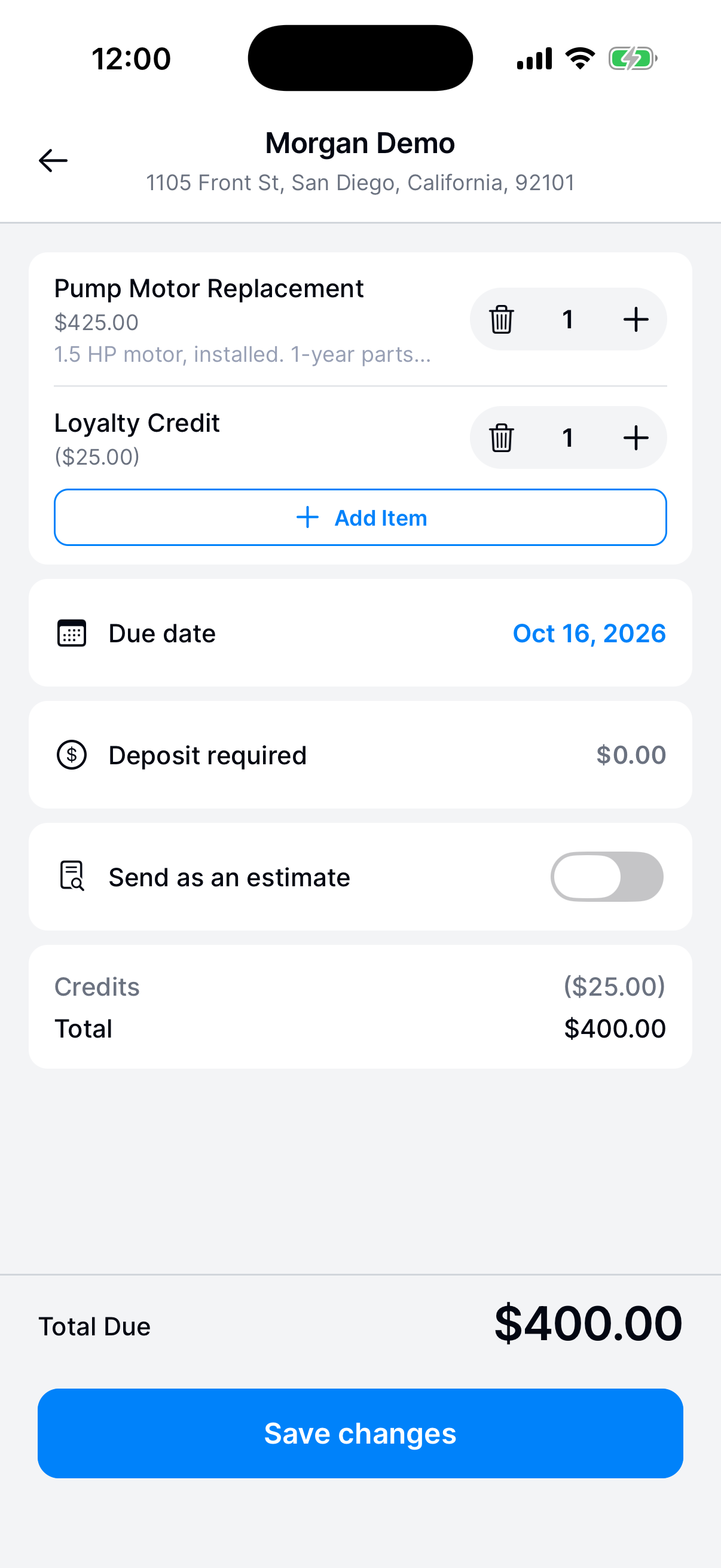
Use the plus and minus buttons to change a quantity. At a quantity of 1, the minus button becomes a trash button that removes the item. On a work order, tap the X next to the item to remove it. Tap Add Item to add one.
Tap an item to change its name, price, or description. Tap the due date to change it.
Save changes
Tap Save changes. Total Due at the bottom of the editor is the whole invoice, before anything the customer already paid. To leave without saving, tap the back arrow, then Discard.
The total can’t go below what the customer already paid, including a payment that’s still going through. If it would, Dip shows Total too low.
If you change the total on a monthly or one-shot invoice you already sent, Dip tells the customer.
Cancel or restore an invoice
A canceled invoice comes off the list, and the customer can’t pay it anymore. Canceling doesn’t count as a payment. If they paid you another way, record the payment instead.
Open the invoice menu
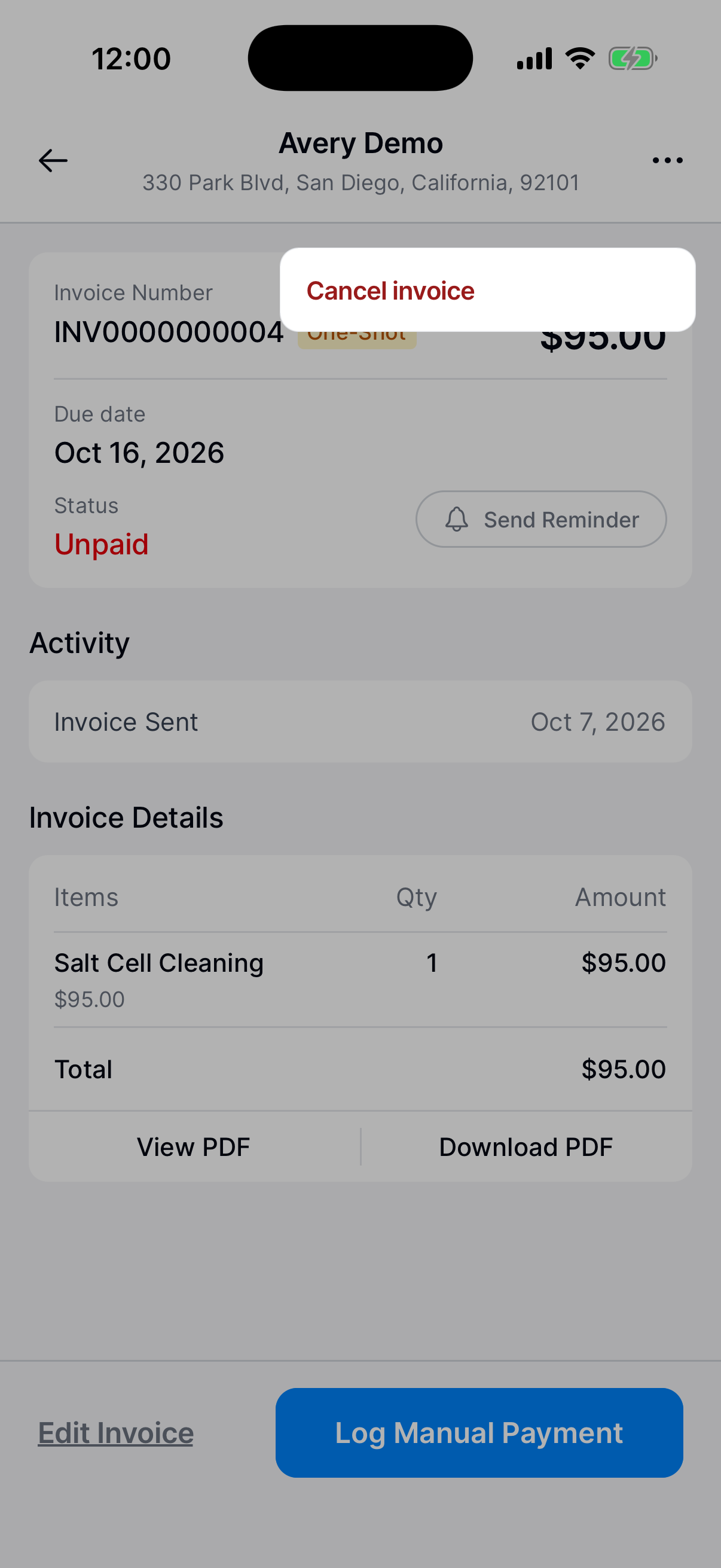
Open the invoice and tap the menu button (three dots) at the top right.
Choose Cancel invoice. For a work order, it says Cancel work order.
Confirm the cancel
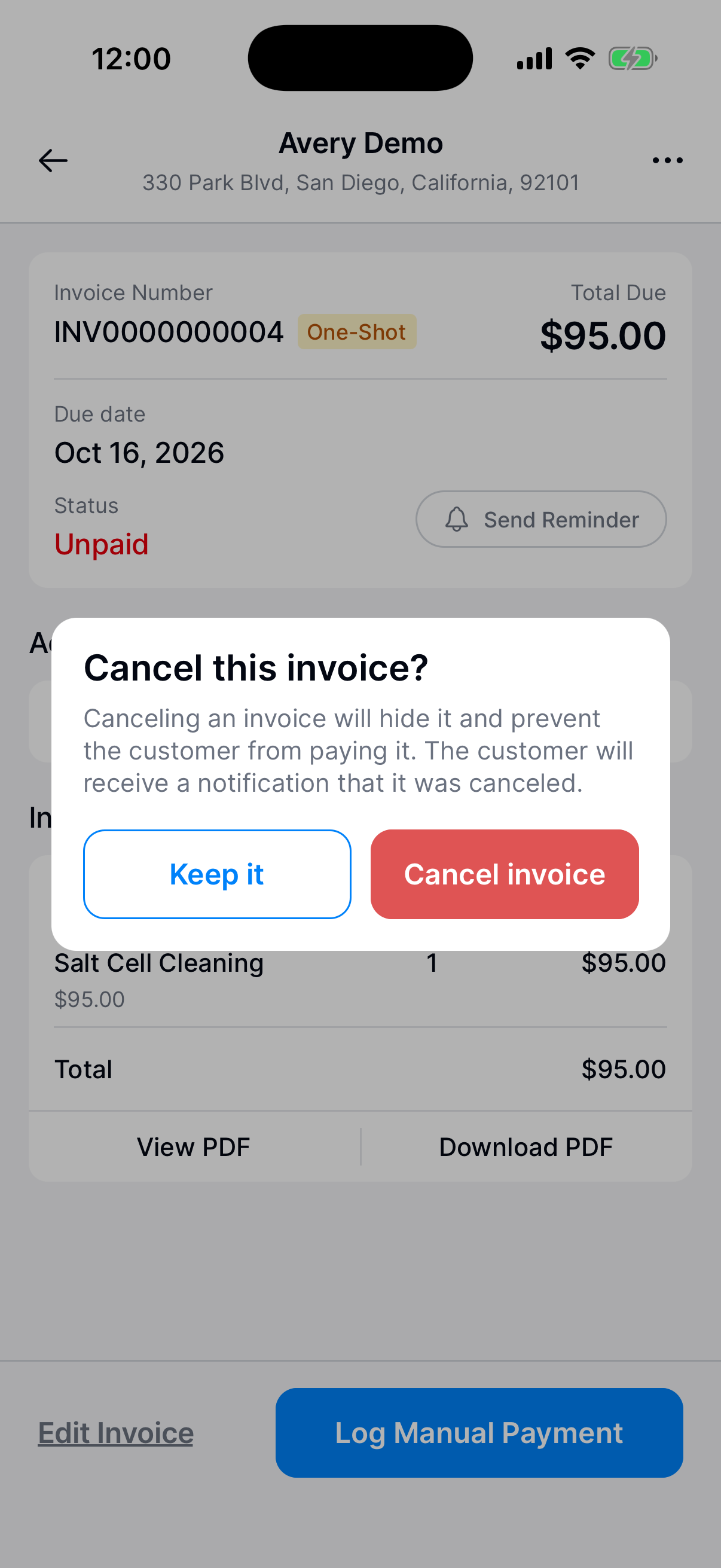
Tap Cancel invoice, or Keep it to go back.
If the customer was sent the invoice, Dip tells them it was canceled. A draft cancels quietly. Dip doesn’t refund a deposit they already paid.
You can’t cancel an invoice that’s paid in full, or one with a payment still processing.
Find canceled invoices
Tap the filter button and turn on Show Canceled. Canceled invoices show in the tab they were in, marked Canceled.
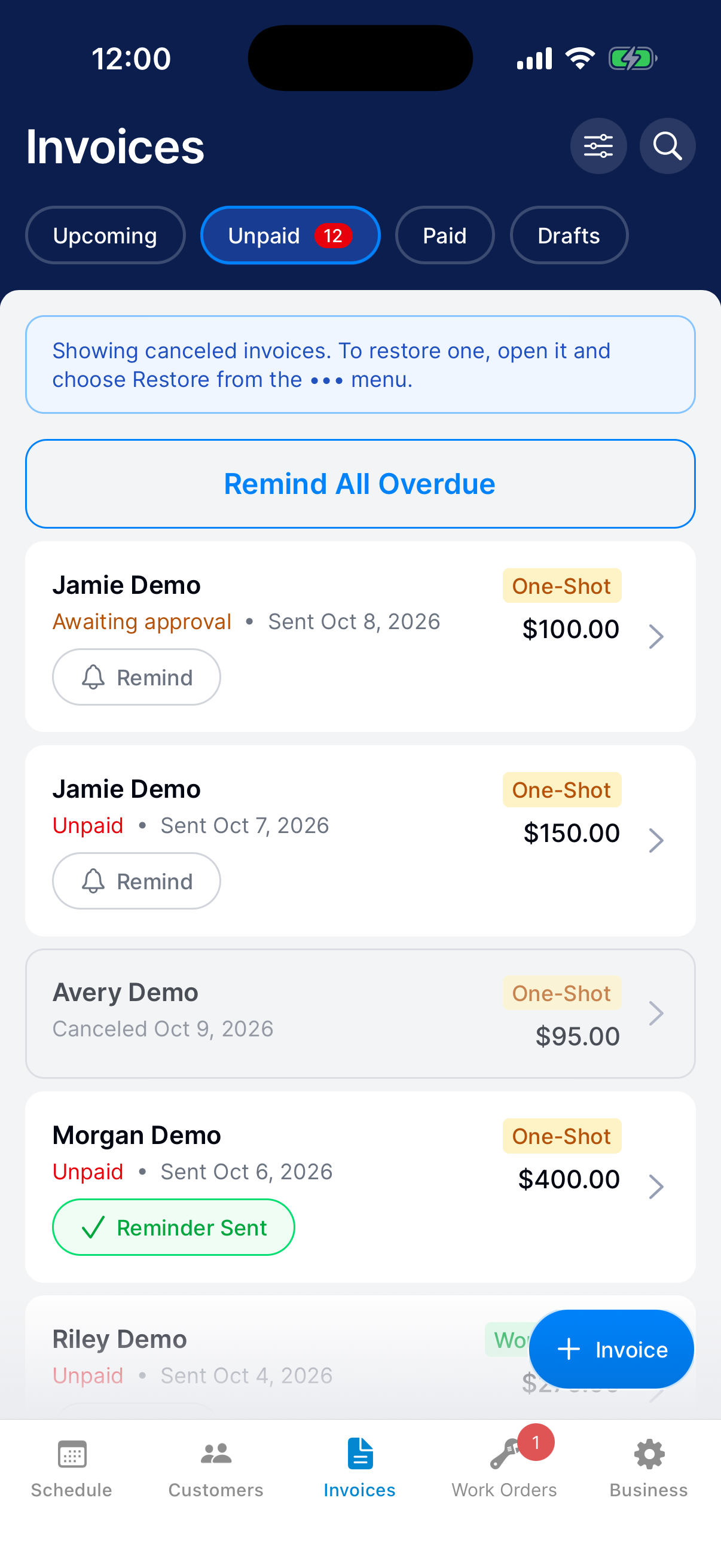
Restore a canceled invoice
Open the canceled invoice, tap the menu button, and choose Restore invoice. Tap Restore to confirm.
It goes back to the status it had before. If the customer had been sent it, Dip sends it to them again.
Need a hand?
I can’t find an invoice. What should I check?
Search for the customer, invoice number, or address. Search covers every tab. Then check the type filters, and turn on Show Canceled in case it was canceled.
Why can’t I send another reminder?
Dip sends one reminder per invoice every 24 hours. Try again once a day has passed since the last Reminder Sent in Activity.
Where did a rejected estimate go?
It goes back to Drafts, marked Rejected. Open it to read why, make your changes, and send it again.
Why don’t I see Log Manual Payment?
On an estimate waiting for approval, the button says Approve for Customer instead. See Approve an estimate for your customer.