
This is for monthly invoices on autopay. Dip tells the customer right away when a charge fails, and they may pay before you get to them. Look for the invoice under Paid before you reach out.
Find the invoice
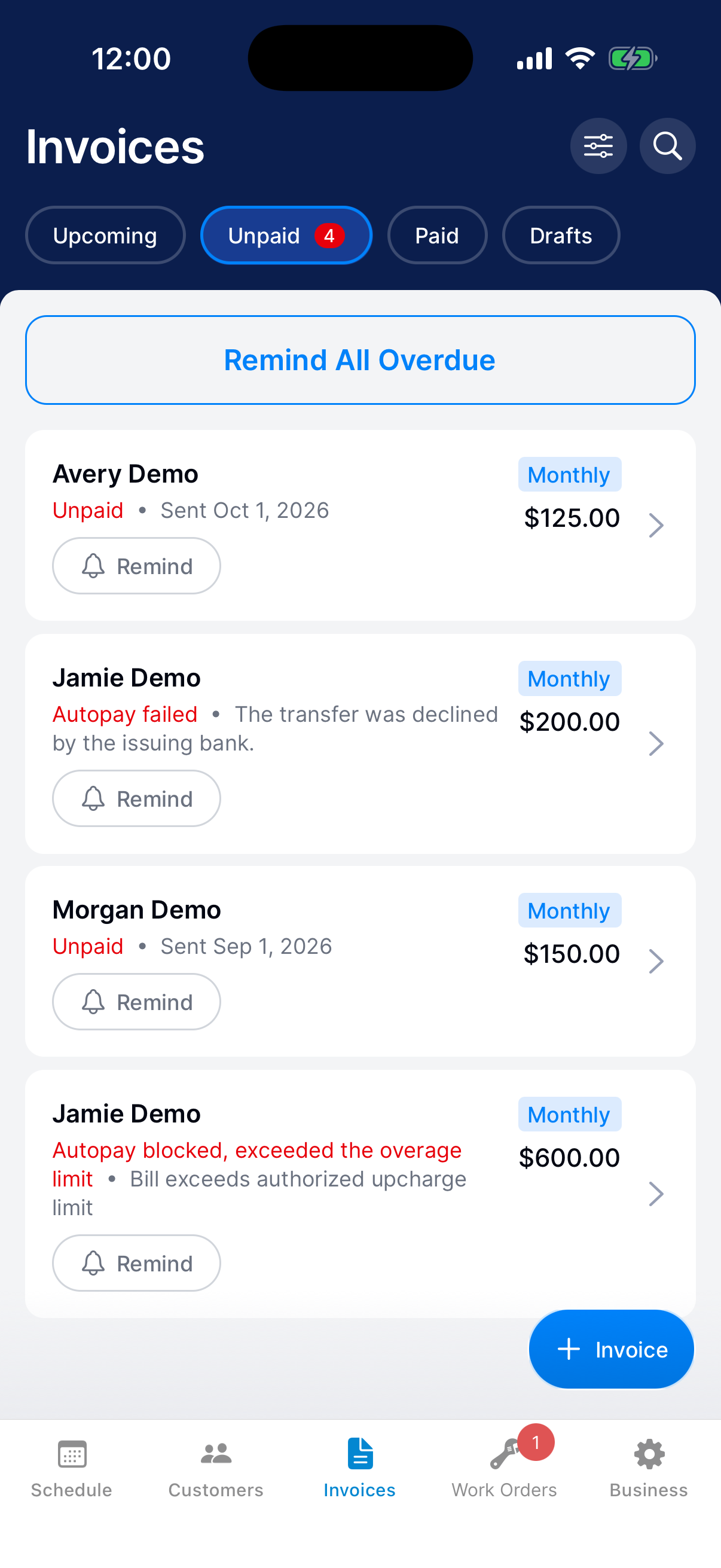
Go to Invoices → Unpaid. A declined charge says Autopay failed, with the reason under it. An invoice over the autopay limit says Autopay blocked, exceeded the overage limit.
Check what happened
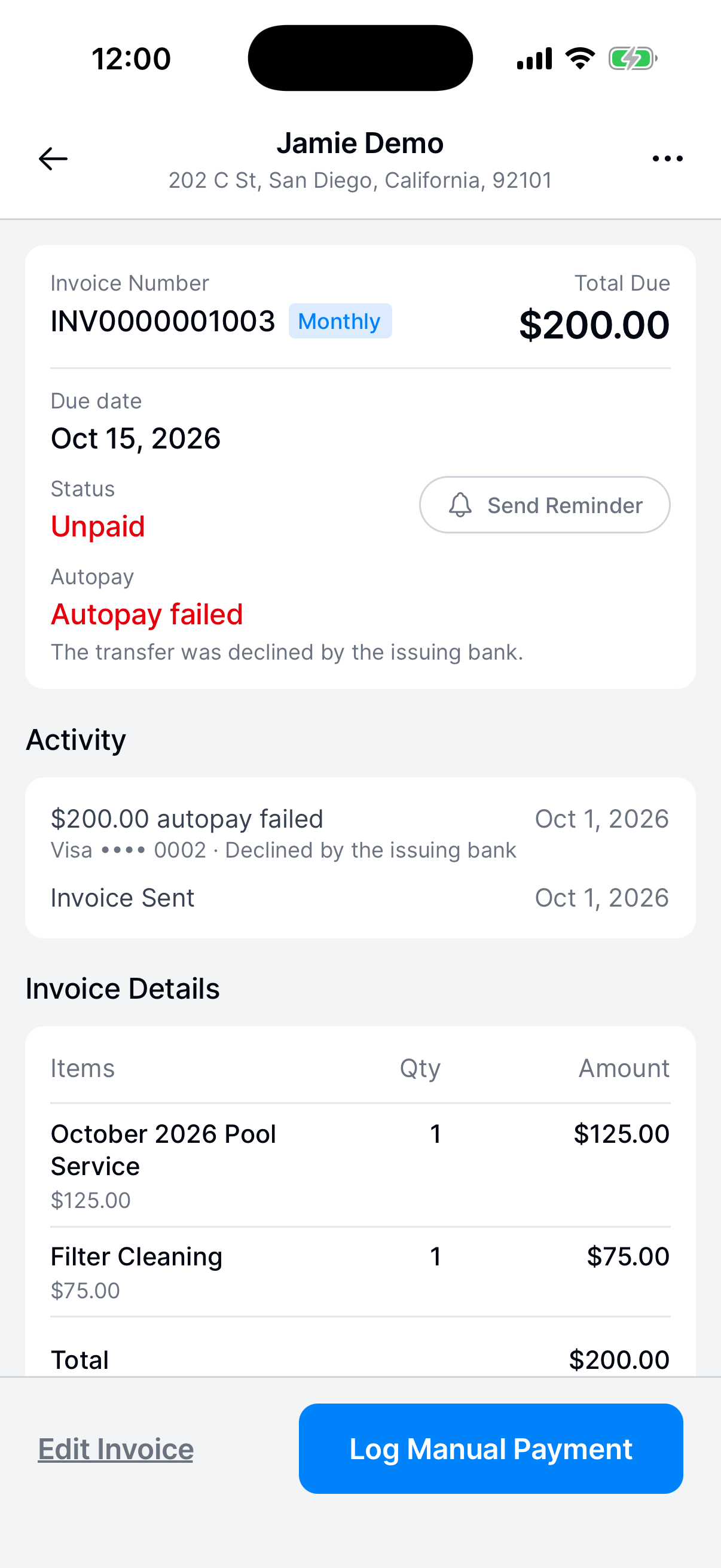
Open the invoice. Activity shows the failed charge, such as $200.00 autopay failed, with the card and the reason.
Follow up
The customer already got an email with a link to pay and a notification asking them to pay in the app. Give it a day.
To nudge them, tap Send Reminder. If they paid you another way, tap Log Manual Payment.
What happens next?
Once the customer pays, the invoice moves to Paid. Autopay tries again on their next monthly invoice.
Need a hand?
Why was autopay blocked?
Autopay charges up to a set percentage over the customer’s monthly service fee. Extra charges on a month can push the invoice past it. The customer reviews it and pays it themselves. To change the percentage, email support@thedip.app.
Can I change the customer’s card?
No. The customer changes their autopay card in Settings in their app.