
Get the customer’s OK first. An operator can do this. A technician needs Manage invoicing for a one-shot estimate or Manage work orders for a work order.
Open the estimate
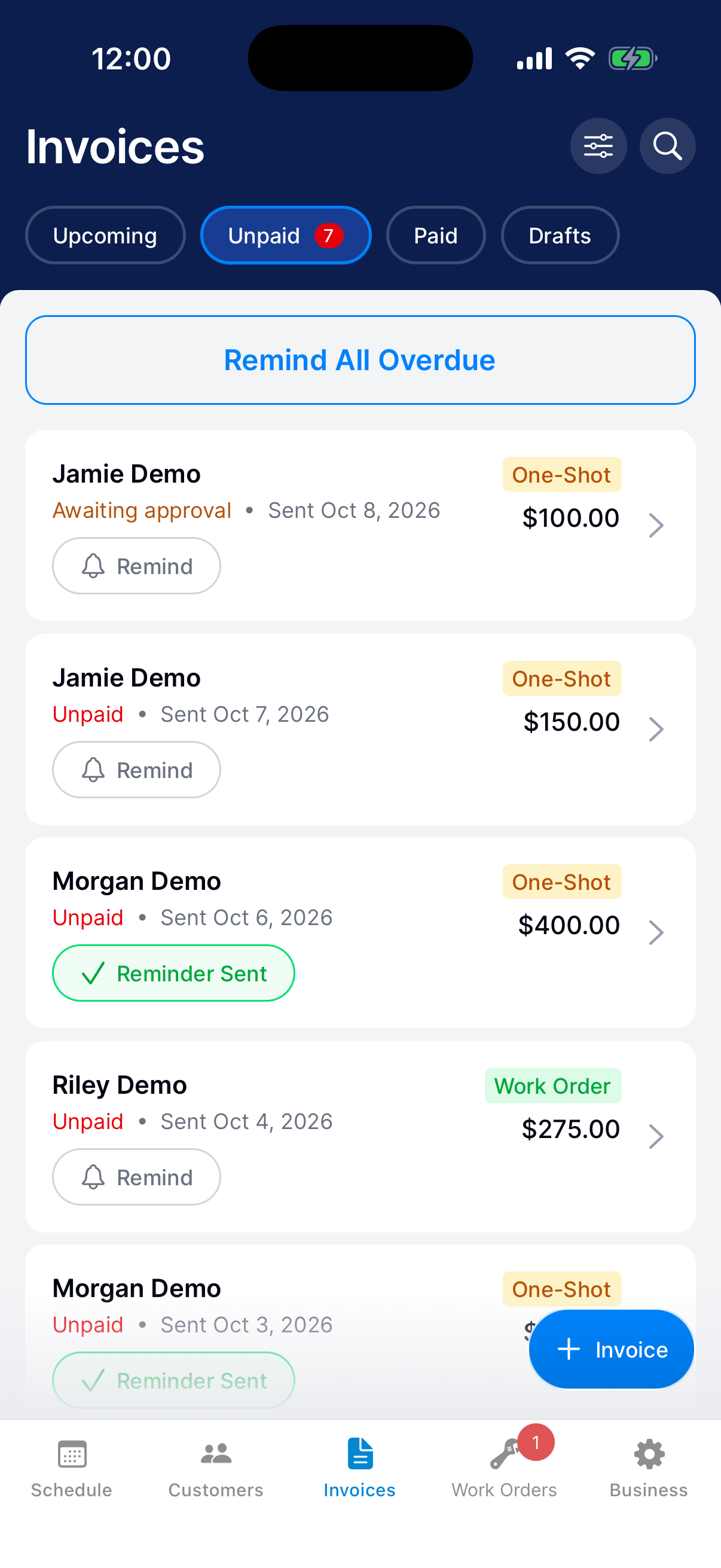
Go to Invoices → Unpaid. An estimate waiting on the customer says Awaiting approval. Tap it.
For a work order, open Work Orders and tap Invoice on its card.
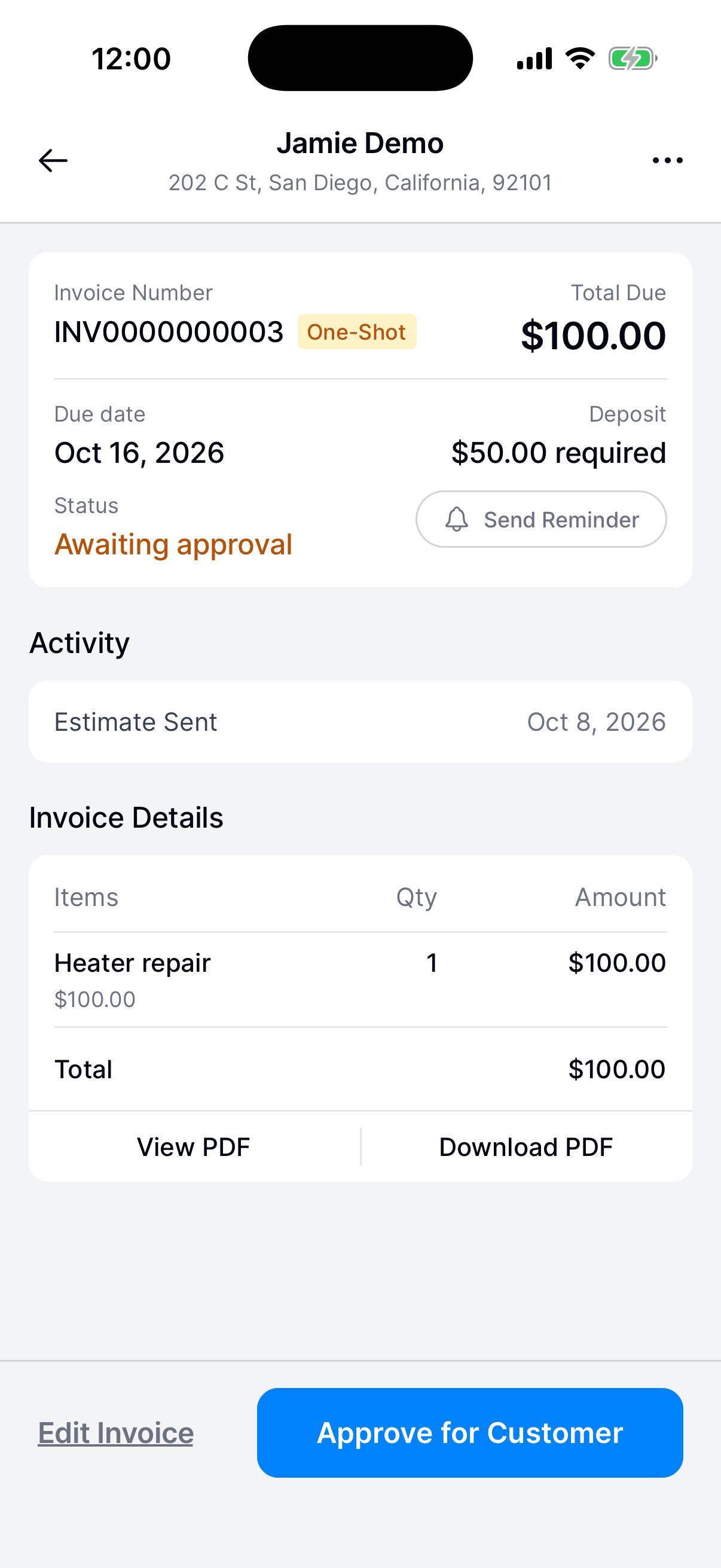
Tap Approve for Customer
Tap Approve for Customer at the bottom. It takes the place of Log Manual Payment until the estimate is approved.
Approve it
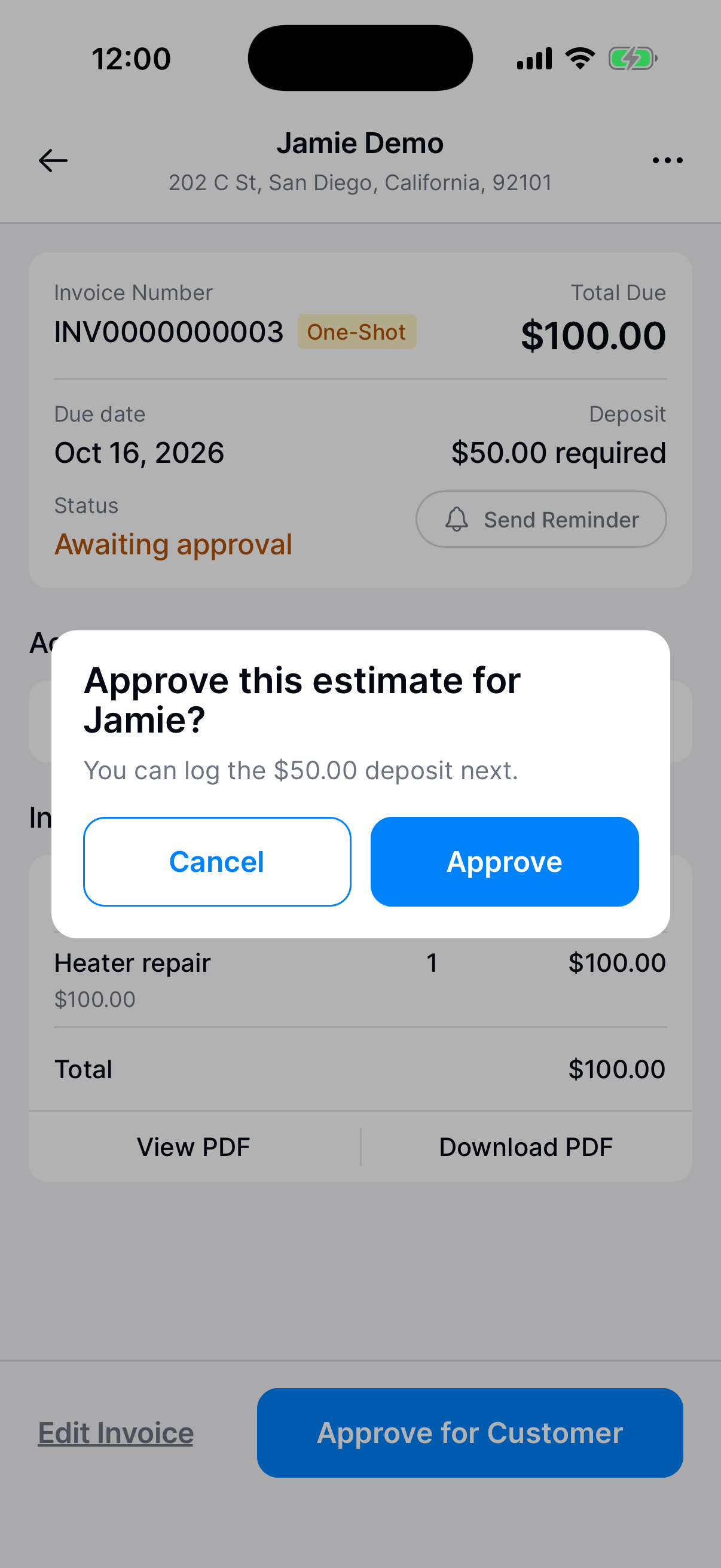
Dip asks “Approve this estimate for Sam?” with your customer’s first name. On some work orders it says “work order” instead of “estimate”. Tap Approve.
A one-shot estimate becomes an invoice the customer can pay. A work order goes on the schedule.
Log the deposit if they paid it
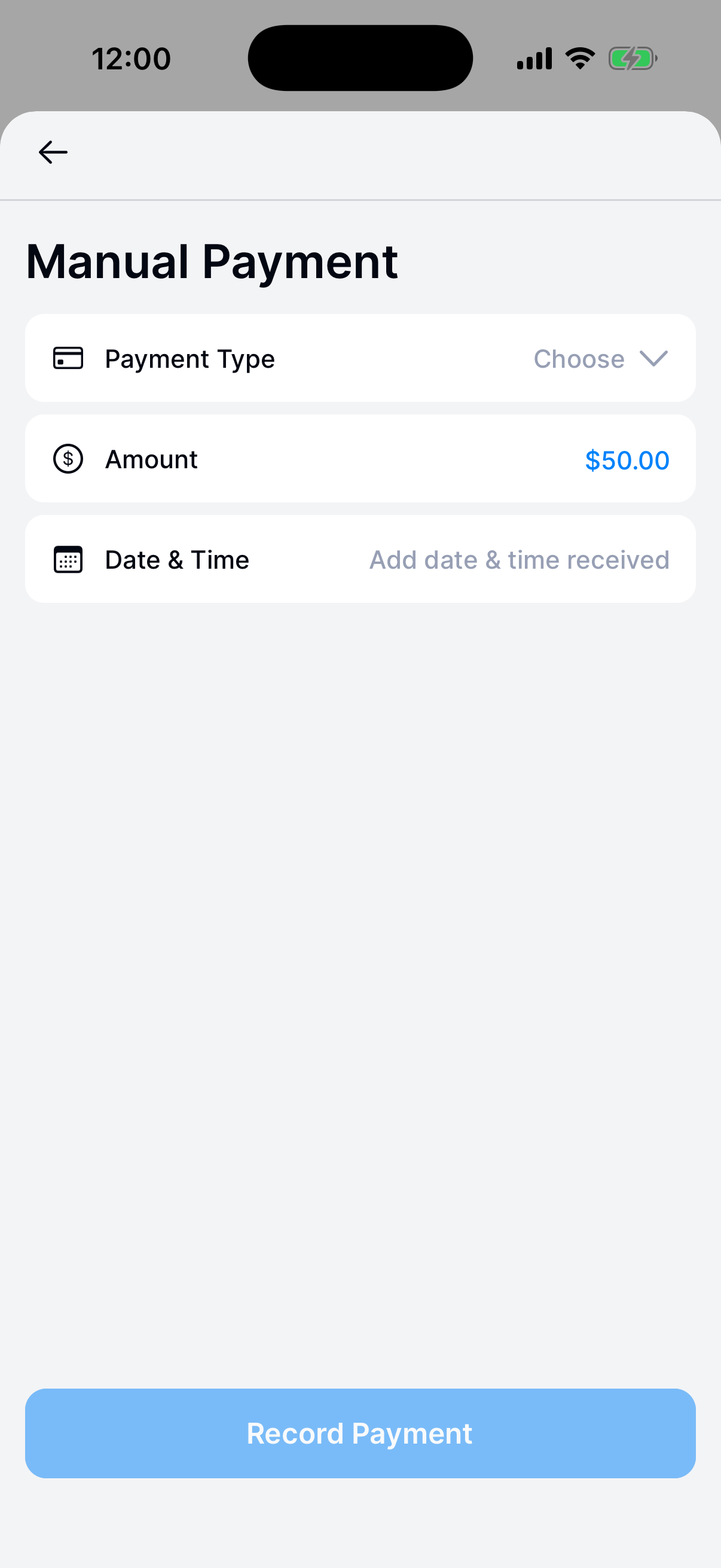
If the estimate has a deposit, the question says you can log it next. After you tap Approve, Log Manual Payment opens with the deposit filled in.
Set the payment type and date, and tap Record Payment. If they haven’t paid yet, go back. The estimate stays approved with the deposit due.
What happens next?
The customer gets an email and a notification saying you approved it for them. Their app says your business approved it on their behalf. Activity on the invoice shows the approval too.
Need a hand?
Can I do this on the web?
Yes. At dashboard.thedip.app, open One-Shot Invoices, Work Orders, or the customer’s page and click Approve for Customer.
Does approving charge the customer?
No. Nothing is charged. Any deposit stays due until it’s paid or you log it.