
The deposit can’t be more than the total. Customers can pay a deposit in Dip once you connect your bank account. Until then, they pay you directly. See Connect your bank account to get paid in Dip.
Add the deposit
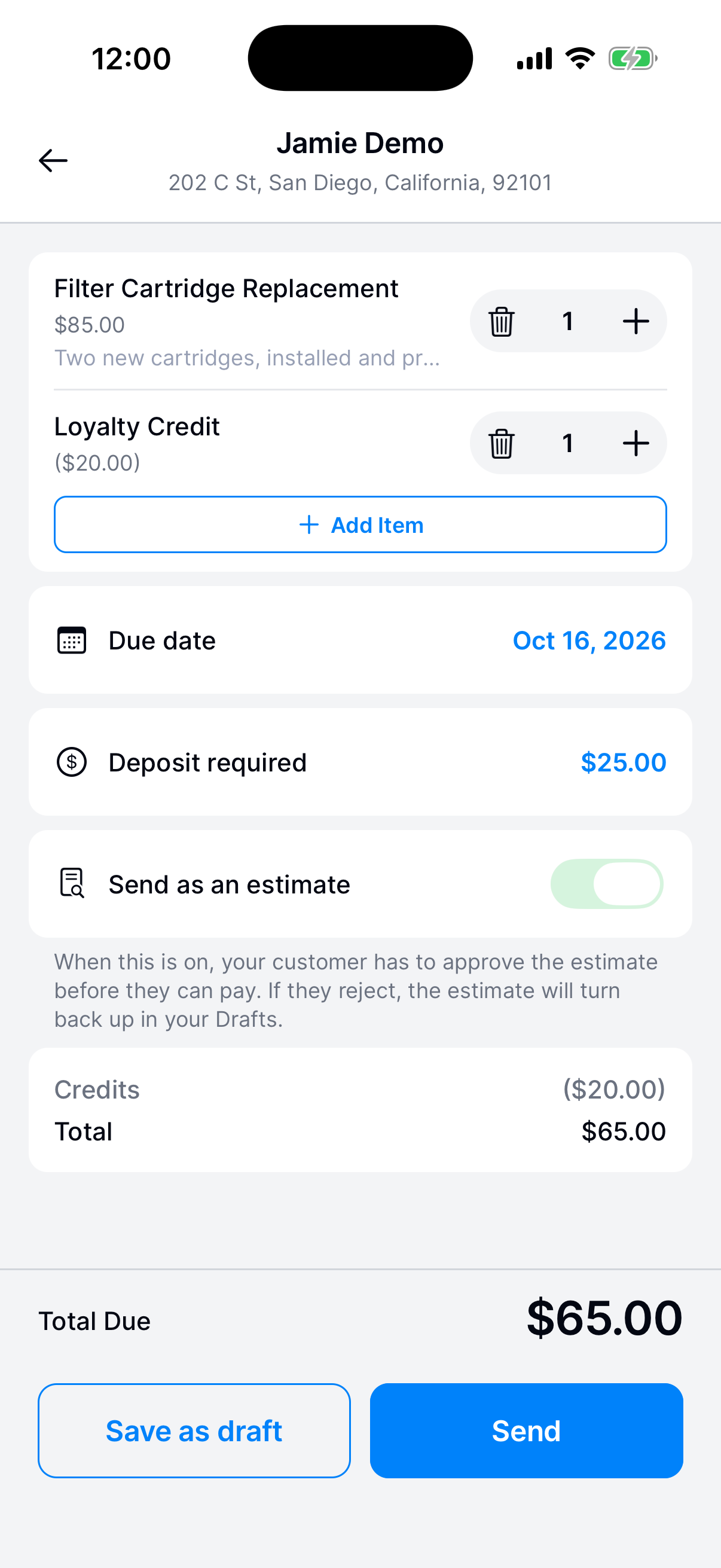
On a one-shot invoice, enter it in Deposit required. This turns on Send as an estimate.
On a work order, turn on Payment required and enter it under Deposit required. This turns on Require customer approval.
Send it
Tap Send, or Save and send to customer on a work order. The customer has to approve it before they can pay the rest.
If your bank account is connected, the customer pays the deposit in the app when they approve. If it isn’t, they approve in the app and pay you some other way.
Check that it’s paid
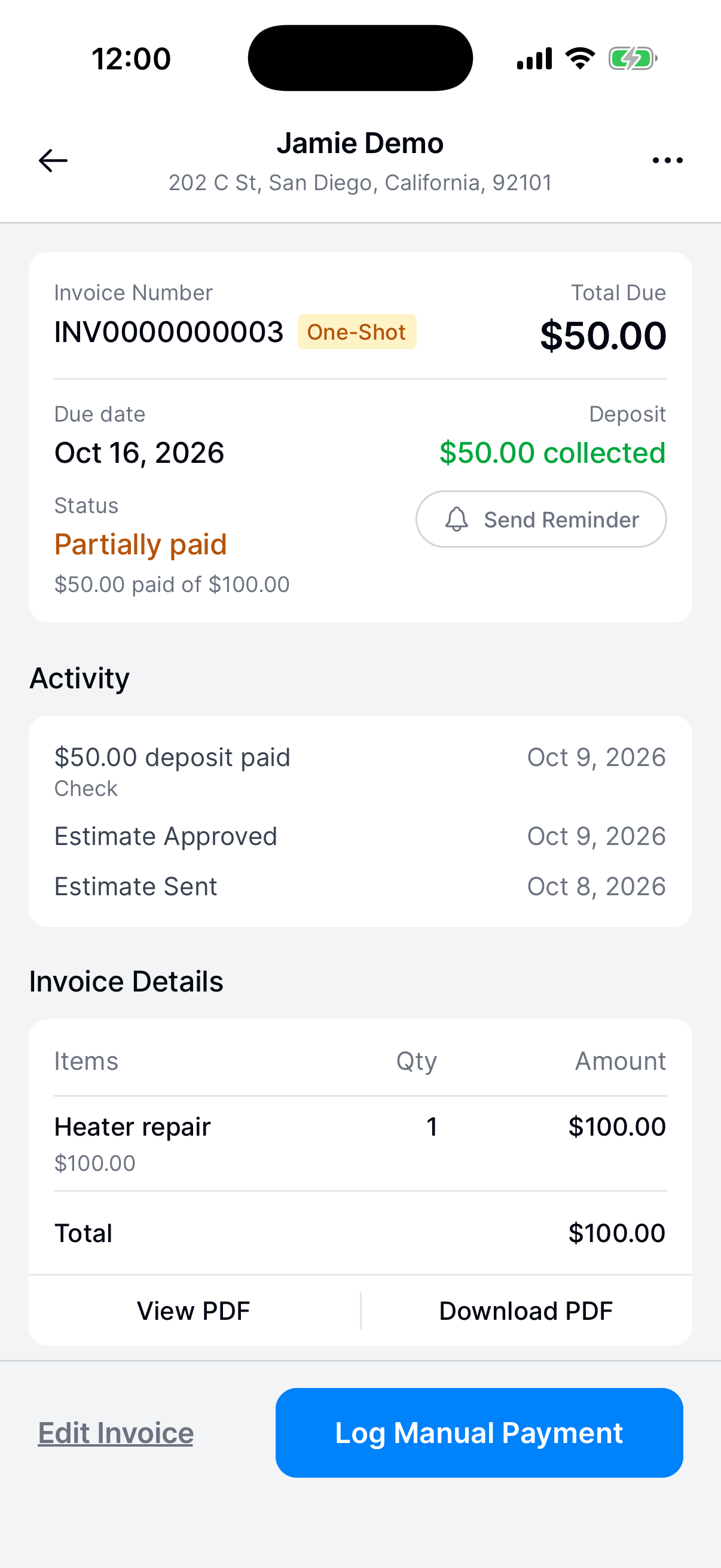
Open the invoice. The Deposit row says collected once it’s paid, and Activity shows it as $50.00 deposit paid.
Until the deposit is paid, the customer can pay the deposit on its own or the full amount. After the deposit, the rest stays due.
Log a deposit paid another way
If the customer approves by phone and pays you directly, tap Approve for Customer and log the deposit when Log Manual Payment opens. See Approve an estimate for your customer.
If they already approved, tap Log Manual Payment and enter the deposit amount.
What happens next?
The customer gets a receipt for the deposit. Find the invoice under Invoices → Unpaid until the rest is paid.
Need a hand?
Can I remove a deposit after sending?
Yes. Open the invoice, tap Edit Invoice, clear Deposit required, and tap Save changes. The customer isn’t notified, because the total doesn’t change.
What if I cancel after the deposit is paid?
Dip doesn’t refund it. Refund the customer yourself.