
Have the technician’s email. They don’t need a Dip account yet. If they already have one, use the email they signed up with.
To set permissions, you need the Admin role. Permissions are set on the Dip website. The app has no permissions screen.
Add a technician
Invite them by email
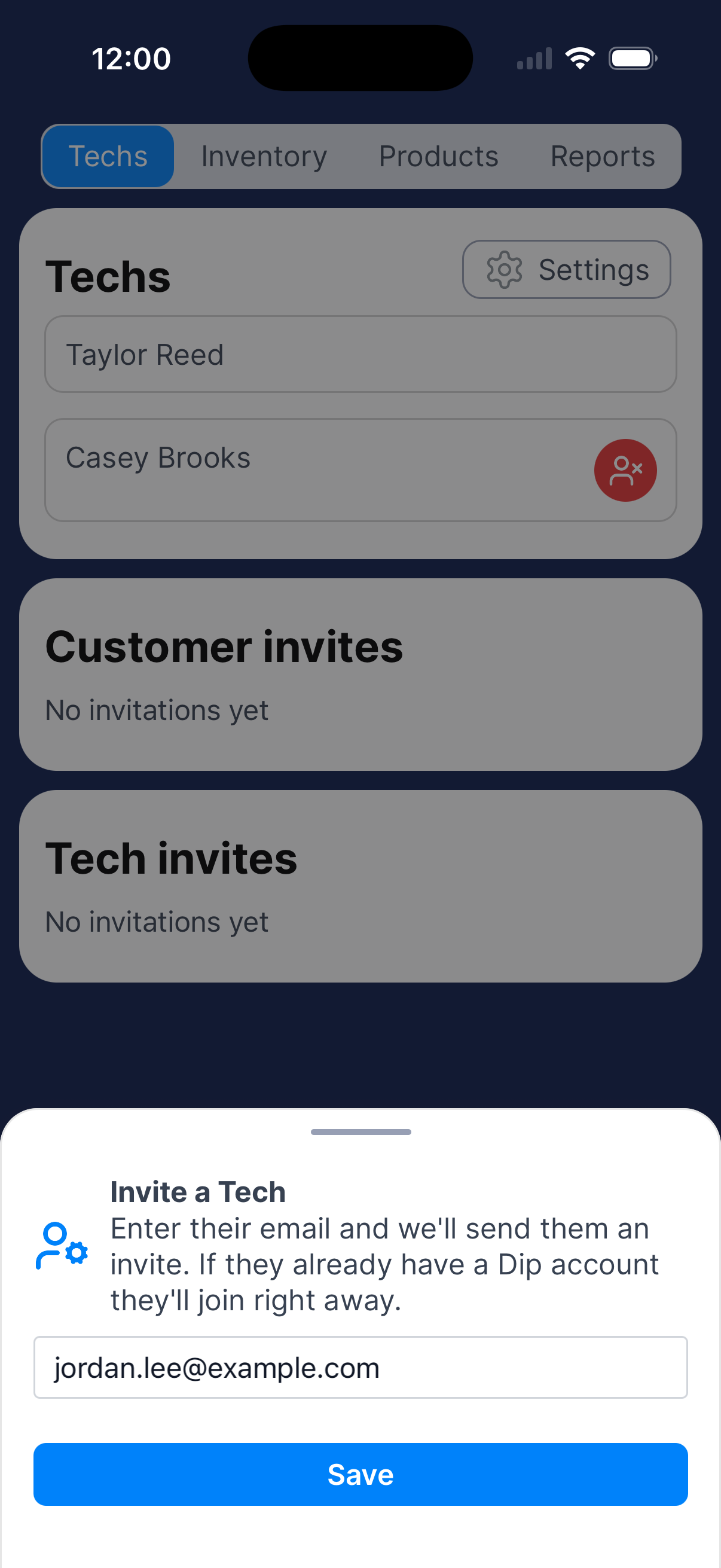
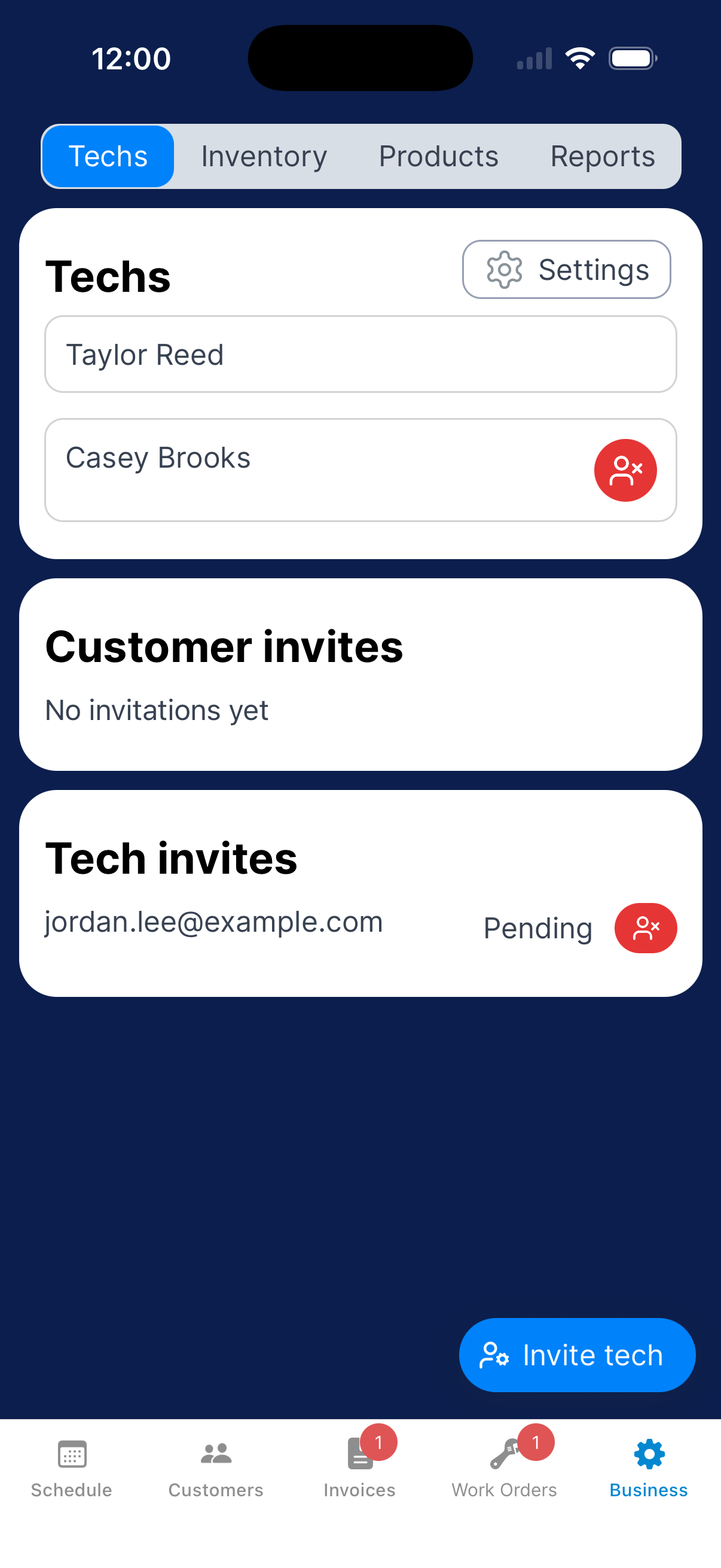
Go to Business → Techs → Invite tech. Enter their email and tap Save.
If they already have a Dip account, they join right away. If not, Dip emails them an invite. It shows as Pending under Tech invites until they sign up as Tech.
Assign work
Once their name shows under Techs, give them work. Pick them as the Tech in a customer’s Service Details, or as the Assignee on a work order.
Set what they can do
Do this once they’ve joined, and again when they take on new work, like invoicing.
Sign in to the Dip website
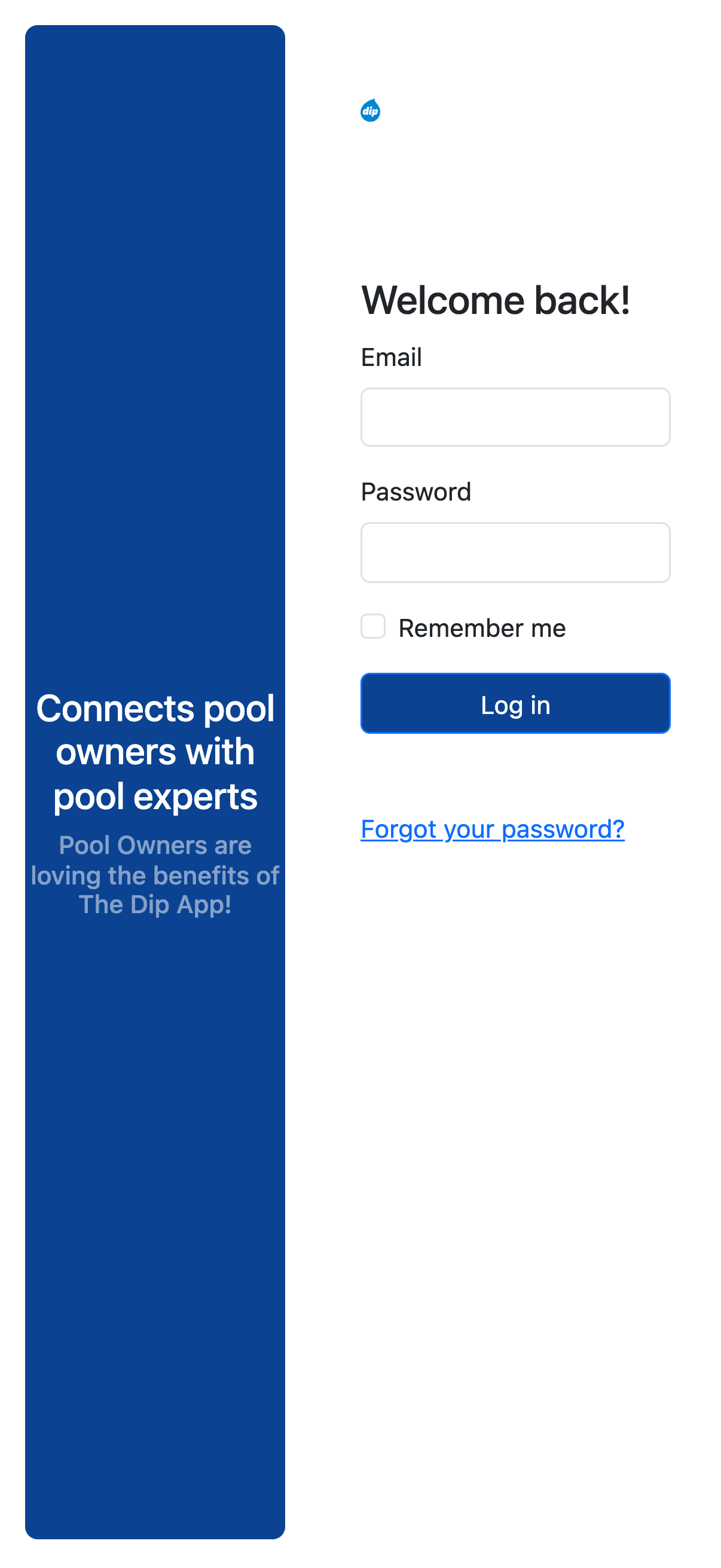
Go to https://dashboard.thedip.app. Enter your email and password, then click Log in.
If your password doesn’t work, use Forgot your password? under the button.
Open User Permissions
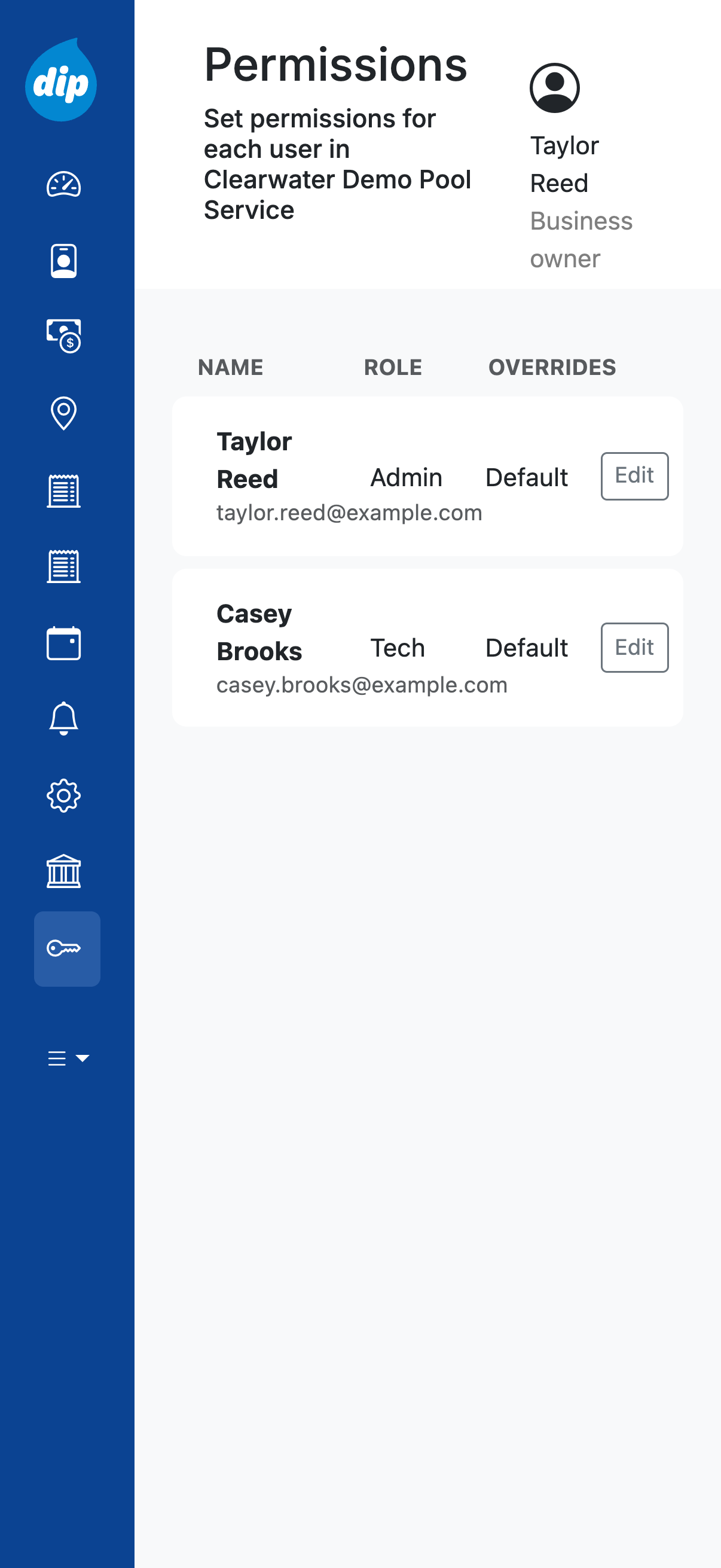
In the menu, click User Permissions. The Permissions page lists everyone in your business and their role.
Click Edit beside the technician.
In a narrow window the menu shows only icons. User Permissions is the key icon.
Choose their role and permissions
Under Role, leave Technician selected. Admin gives them full access, including User Permissions.
Under Overrides, turn on each permission they need. Turn off any they shouldn’t have. See What each permission does.
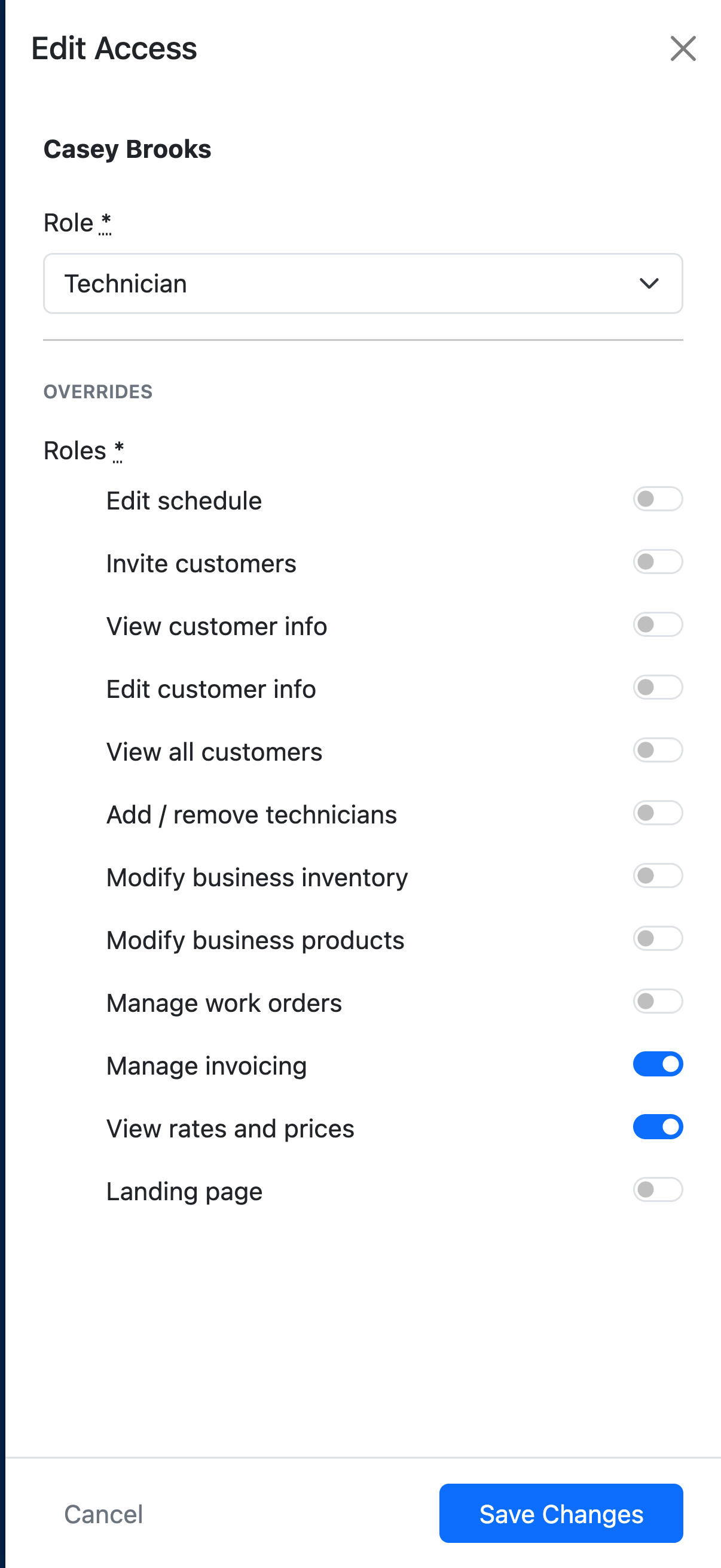
Save and check the app
Click Save Changes. The page shows Updated permissions for and their name.
The technician doesn’t need to log out. If Dip is open and online on their phone, it updates on its own. If it’s closed, they get the change next time they open Dip.
A newly opened Invoices or Work Orders tab can start empty. Have them pull down on the list to load it.
Remove a technician
Hand off their work, then remove them
First give their work to the person taking over. Change the Tech in each of their customers’ Service Details, and the Assignee on each of their work orders.
Then go to Business → Techs, tap the red remove button beside their name, and tap OK.
What each permission does
An Admin can do all of this. A technician gets only what you turn on.
| Permission | What it opens |
|---|---|
| Admin role | Full access in the app and on the Dip website. It covers every permission below except Landing page. |
| Technician role | The customers and visits assigned to them, service visits, and job reports. They can start a work order and tap Send to Manager. |
| Edit schedule | Pool Tech and Move to on the Schedule. With Edit customer info, also the Tech and Scheduled Every in a customer’s Service Details. Changing a work order’s tech or date also needs Manage work orders. |
| Invite customers | Send Invite on the profile of a customer who is Not on Dip. |
| View customer info | A customer’s Phone Numbers and Emails, and the Message button on their profile. Also the message button on the Schedule. |
| Edit customer info | Add New on the Customers tab. On a customer’s profile, the edit button on each section, the Customer status switch, and Delete customer. |
| View all customers | Every customer in the business and every tech’s visits. They can pick a tech at the top of the Schedule. |
| Add / remove technicians | The Techs tab under Business, with Invite tech and the remove button. It doesn’t open User Permissions. |
| Modify price list | The Price list tab under Business, to add, edit, and remove items. Also the Save to price list switch when they add a new charge. |
| Modify business products | The Products tab under Business, to turn products on or off. |
| Manage work orders | The Work Orders tab. They can create, price, assign, schedule, and send any work order, with its deposit and payments. A technician with neither this nor Manage invoicing sees only work orders assigned to them, with no prices. |
| Manage invoicing | The Invoices tab. They can send, edit, cancel, and restore invoices, send reminders, record payments, and create one-shot invoices. On a customer’s profile, the One-Shot button works and Autopay shows. Sending a work order from Drafts also needs Manage work orders. Invoicing settings stay with Admins. |
| View rates and prices | The Monthly Service Fee on a customer’s profile. Prices and totals on job report charges. They can add their own charge with New Item. Without it, they pick charges from the list and see no prices. Changing the fee also needs Edit customer info. |
| Landing page | Adds Landing page to an Admin’s menu on the Dip website. It does nothing for a technician. |
Need a hand?
Can a technician change permissions?
No. Only an Admin can open User Permissions. Add / remove technicians doesn’t include it.
Why can’t a technician see the Invoices tab?
They need Manage invoicing. Turn it on, save, and have them pull down on the Invoices list.