
Before you begin
Use this for repeat invoice charges. For a one-time charge, add the item directly to the invoice. Products are separate: use Products to track the chemicals on your trucks.
Save a repeat charge
Save repeat items such as filter cleaning to avoid retyping them.
1
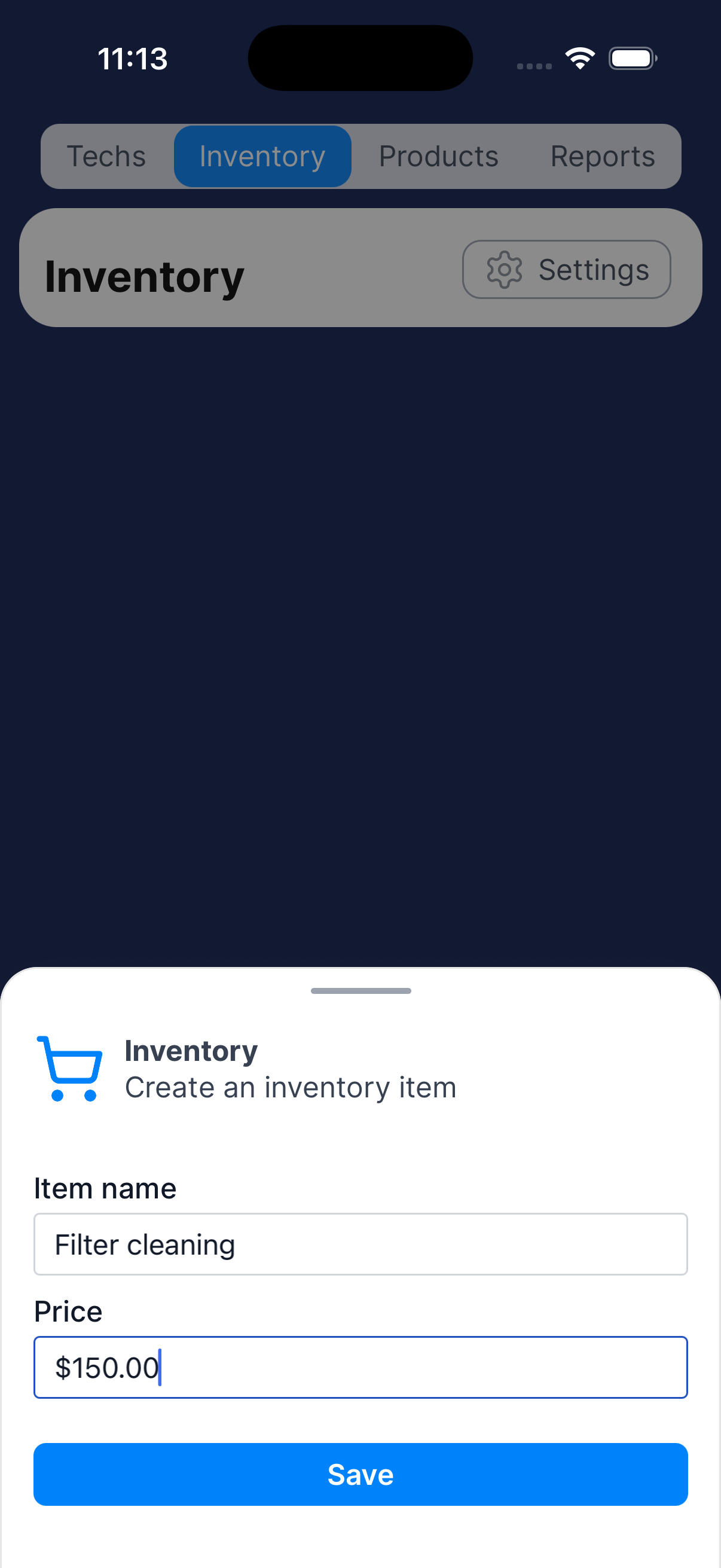
Create the inventory item
Go to Business → Inventory → Add inventory. Enter the item name and price.
Tap Save.
2
Use it on an invoice
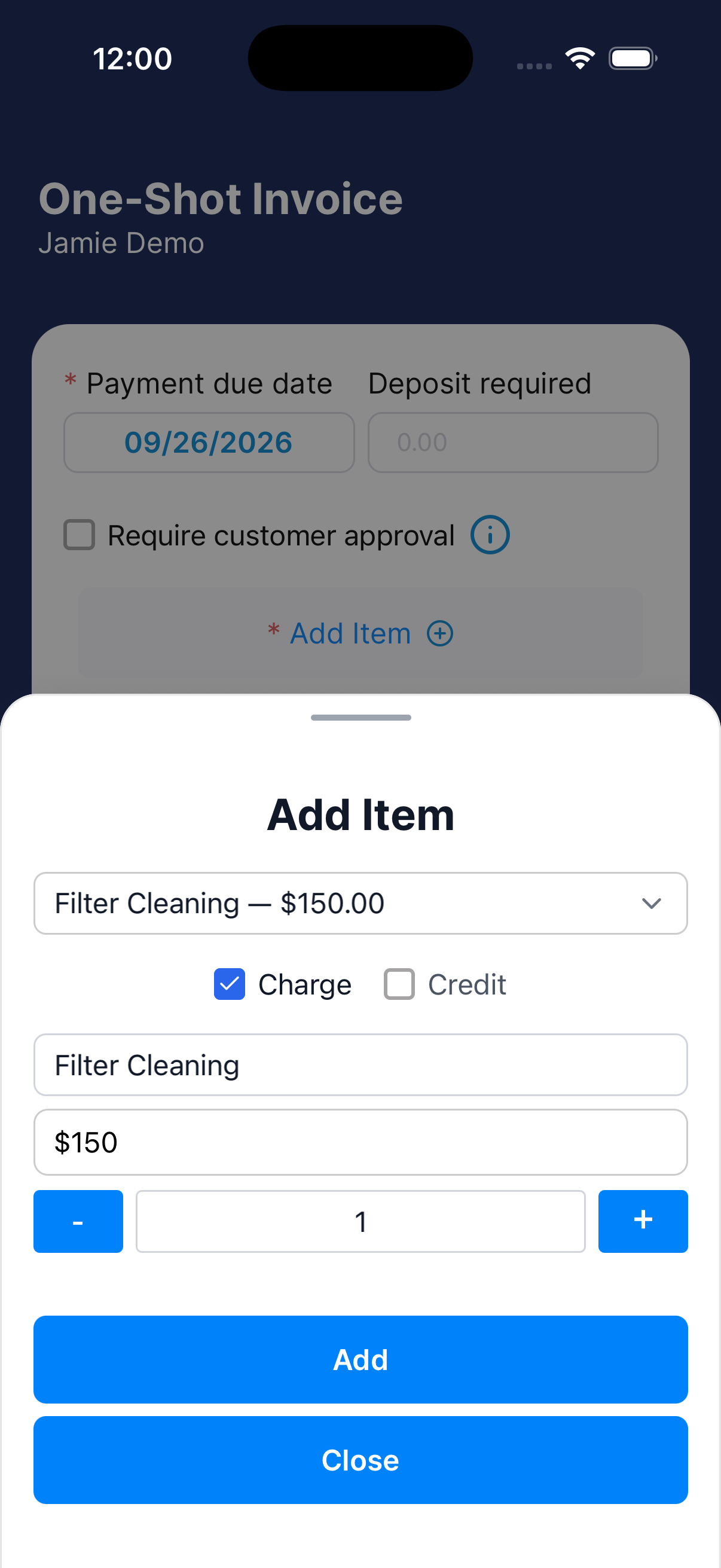
In Add Item on an invoice, choose the saved item from Inventory. Check the price and quantity before adding it.
Remove an item
The item is removed as soon as you tap the button.
1
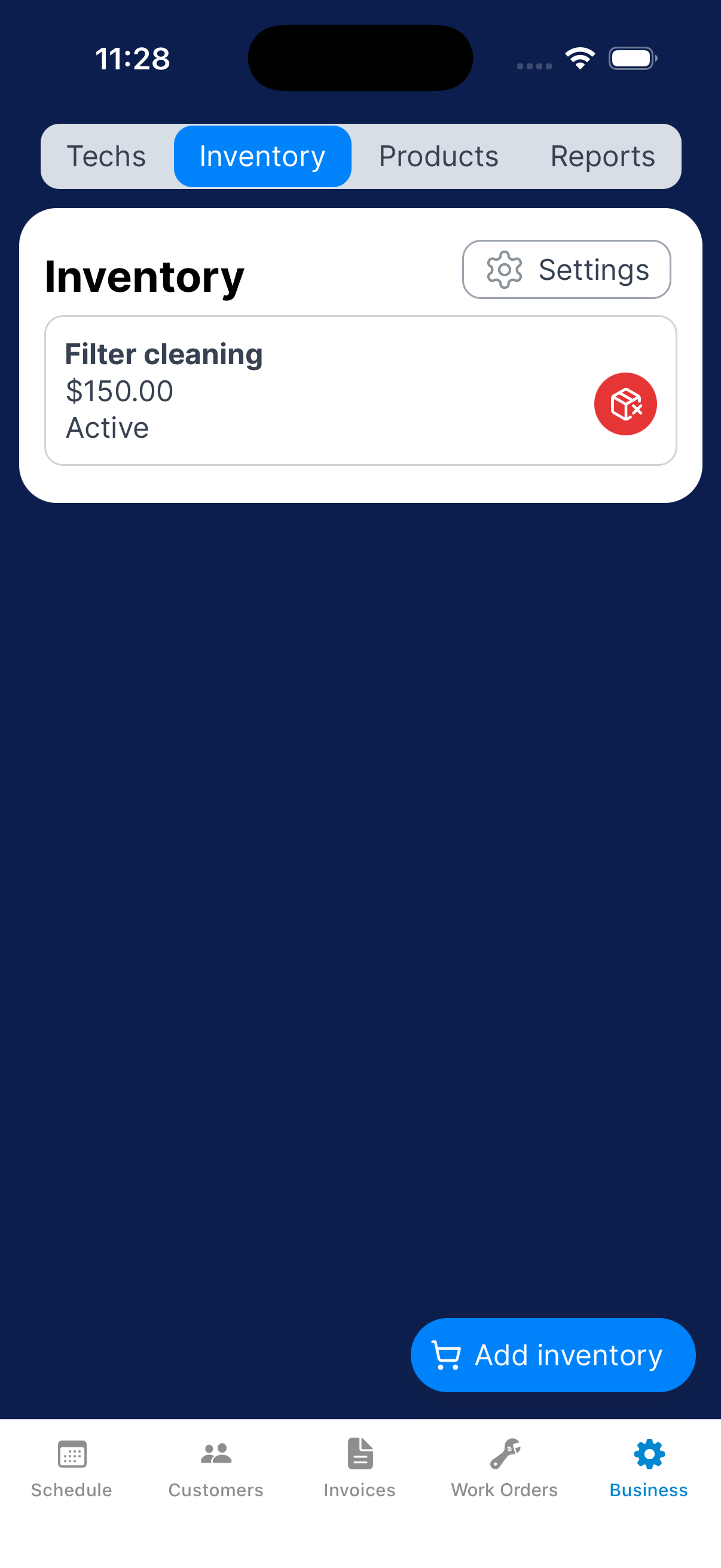
Remove the selected item
Go to Business → Inventory and find the item. Check its name, then tap the red remove-item button.
What happens next?
Choose saved items from Inventory when you add an invoice charge. Add one-time charges directly in Add Item.