
Open Dip while you still have a signal. That loads the day’s schedule onto your phone.
Check the day and the property
Choose the service day
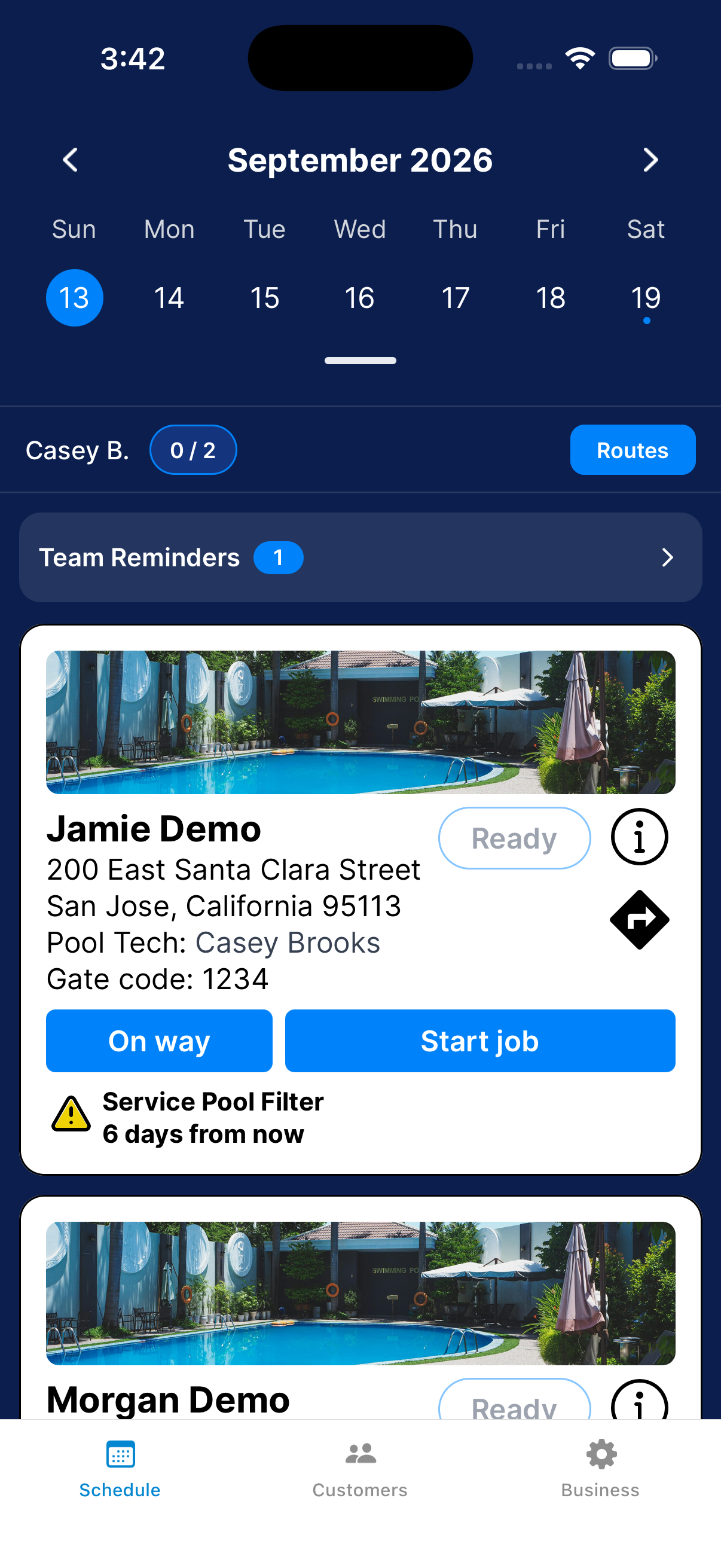
Open Schedule and pick the day. You see the visits assigned to you.
If a visit you expected isn’t there, ask your manager who it’s assigned to.
With the View all customers permission, you can also pick All techs or another technician.
Read the visit card and property instructions
Each card shows the address, the last service date, and any task reminders. Tap the info button (i) for property notes and how to get in.
You can also open a customer from Customers.
Look at the route
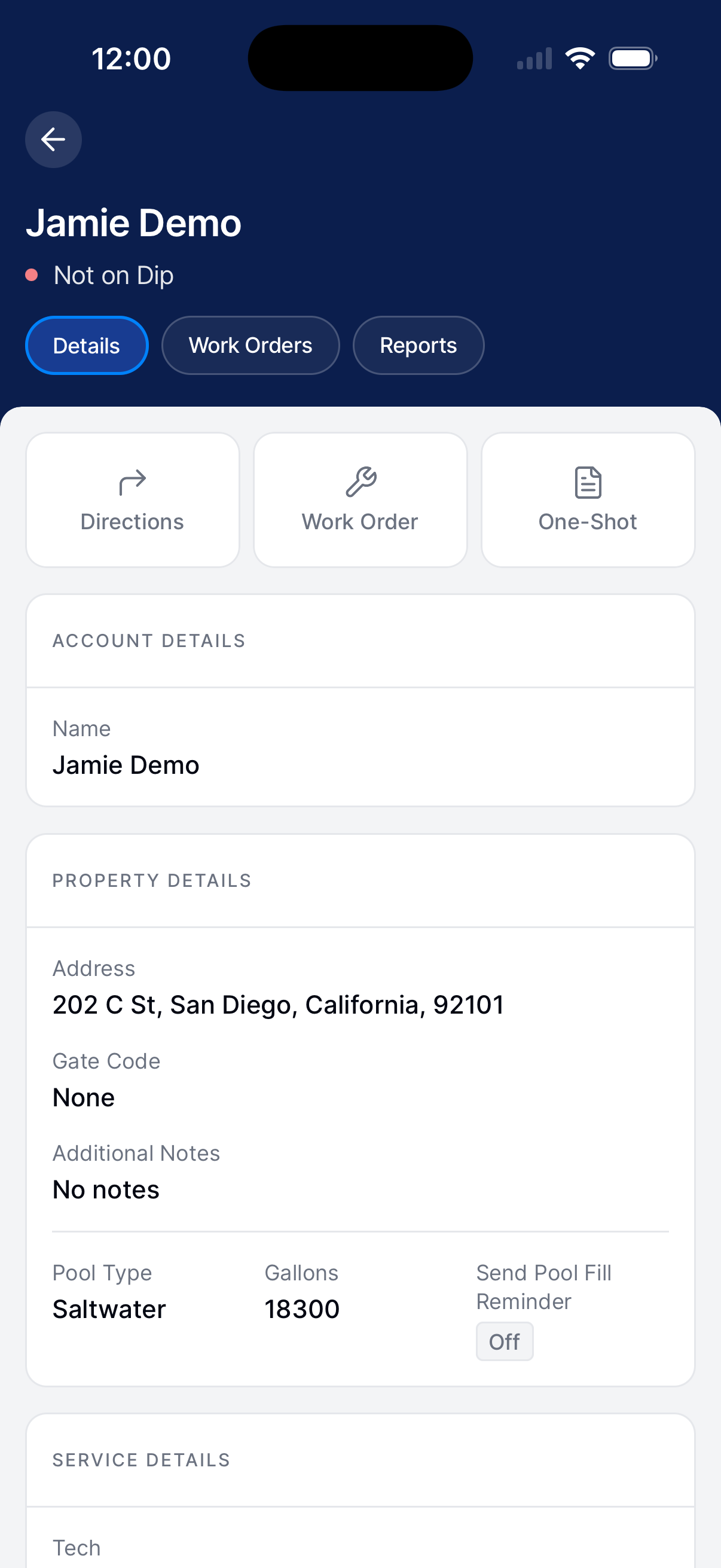
Tap Routes to see the day’s stops on a map. To change the start, end, or order, see Plan a route.
If there’s no Edit route button, your manager has turned off route editing for technicians.
Travel and update the customer
Get directions or message the customer
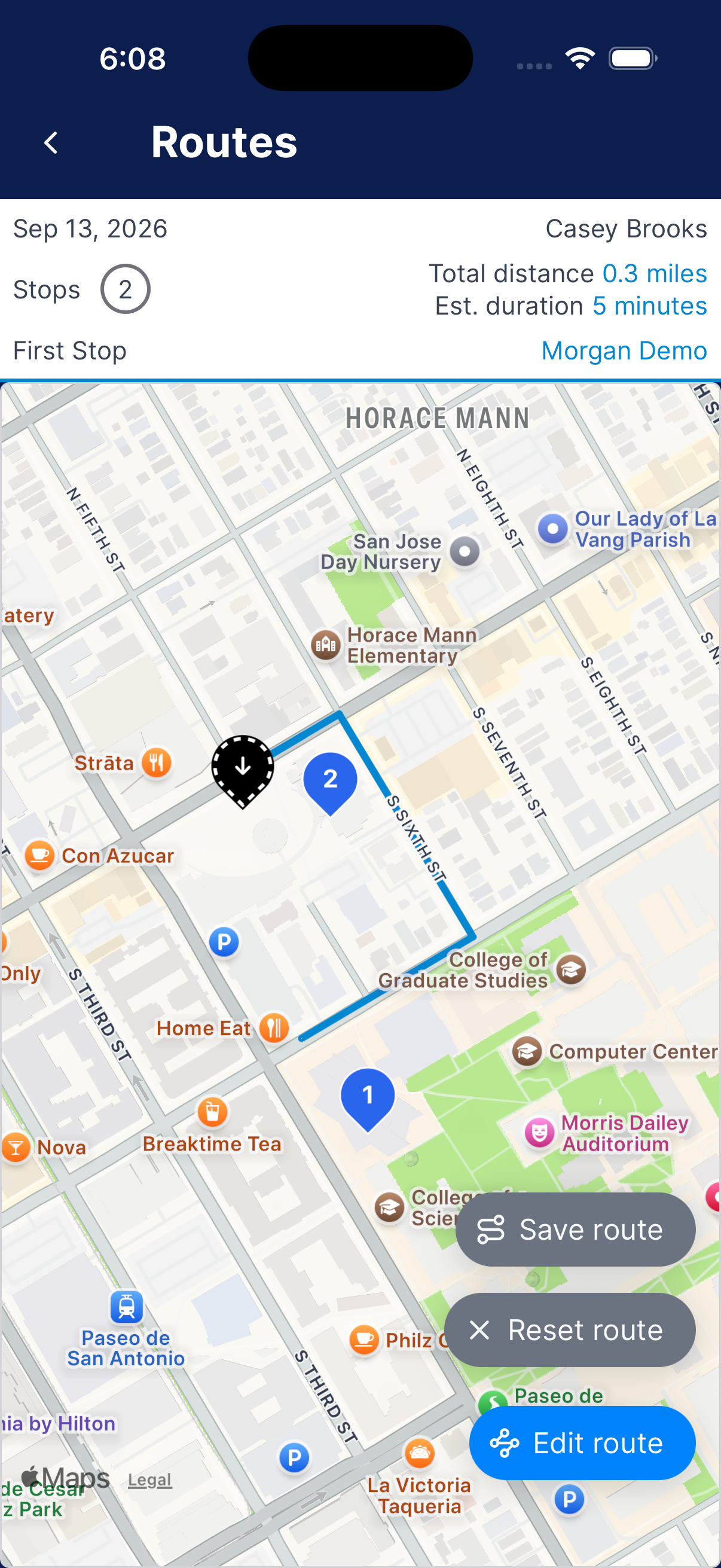
Tap the directions arrow on the visit, or Directions on the customer’s profile, to open your map app. Tap Message to contact the customer.
If Message isn’t there, ask your manager for the View customer info permission.
Tell the customer you’re on the way
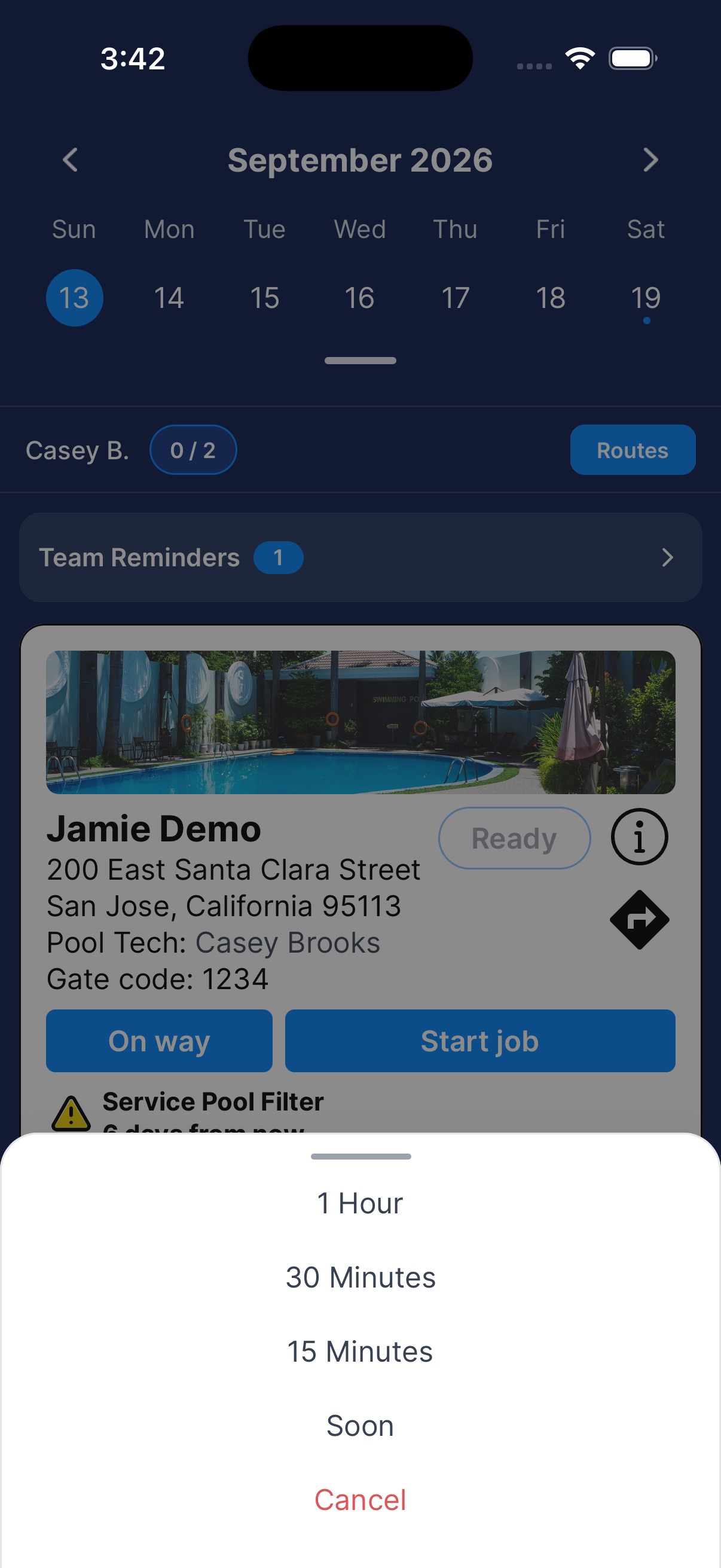
On the visit card, tap On way and choose 1 Hour, 30 Minutes, 15 Minutes, or Soon.
The customer gets a notification as soon as you tap, such as “Your pool tech is arriving in 30 Minutes”. To close the list without sending anything, tap Cancel.
Need a hand?
What does Continue job mean?
You already started a report for that visit. Tap Continue job to pick up where you left off.
Why can’t I see a customer’s contact information?
Phone numbers, emails, and Message need the View customer info permission. Ask your manager to turn it on. They do that on the web, under User Permissions.