
A technician can edit a route only if their manager allows it. If you don’t see Edit route, see the question at the bottom.
Open the route
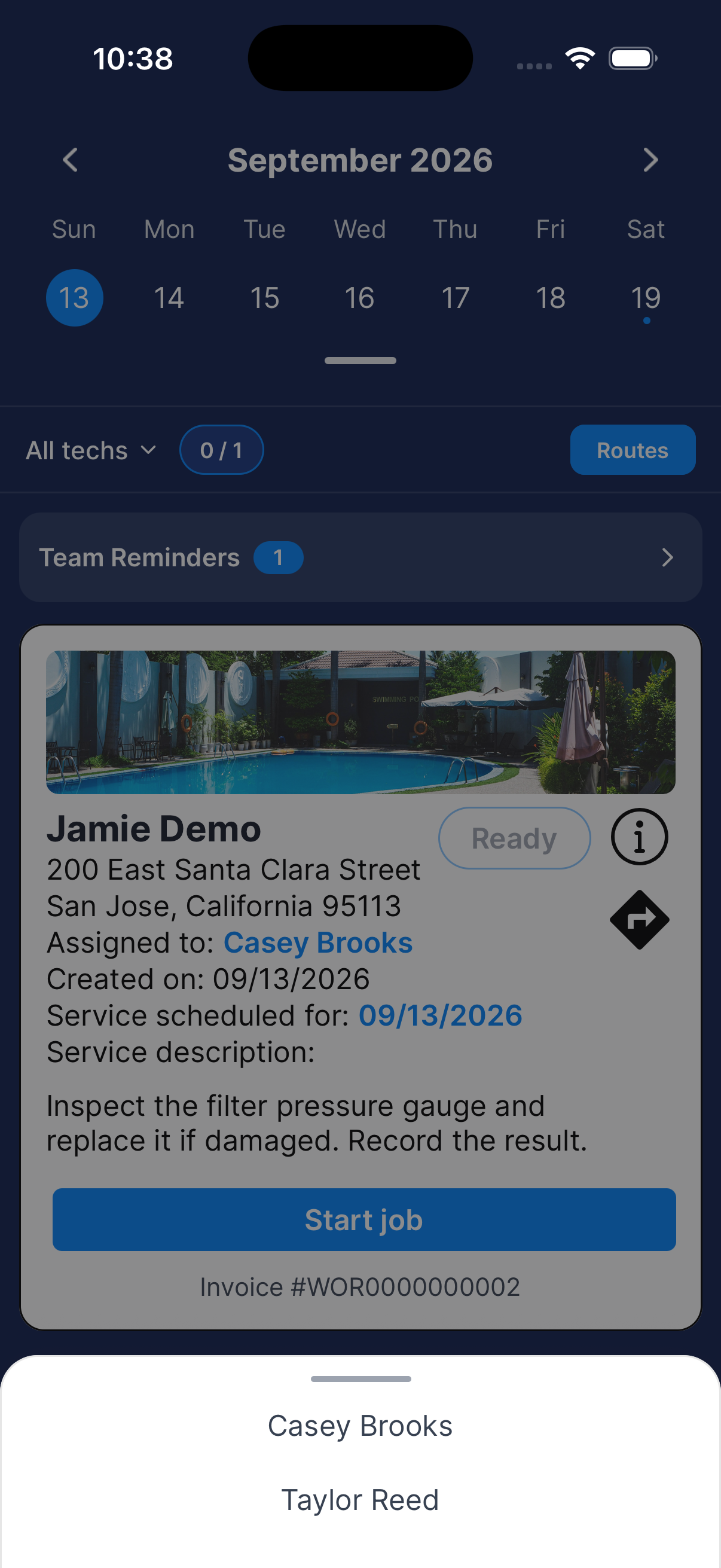
Open Routes
On Schedule, choose the date and tap Routes. If you chose All techs, choose a technician too.
Review the map
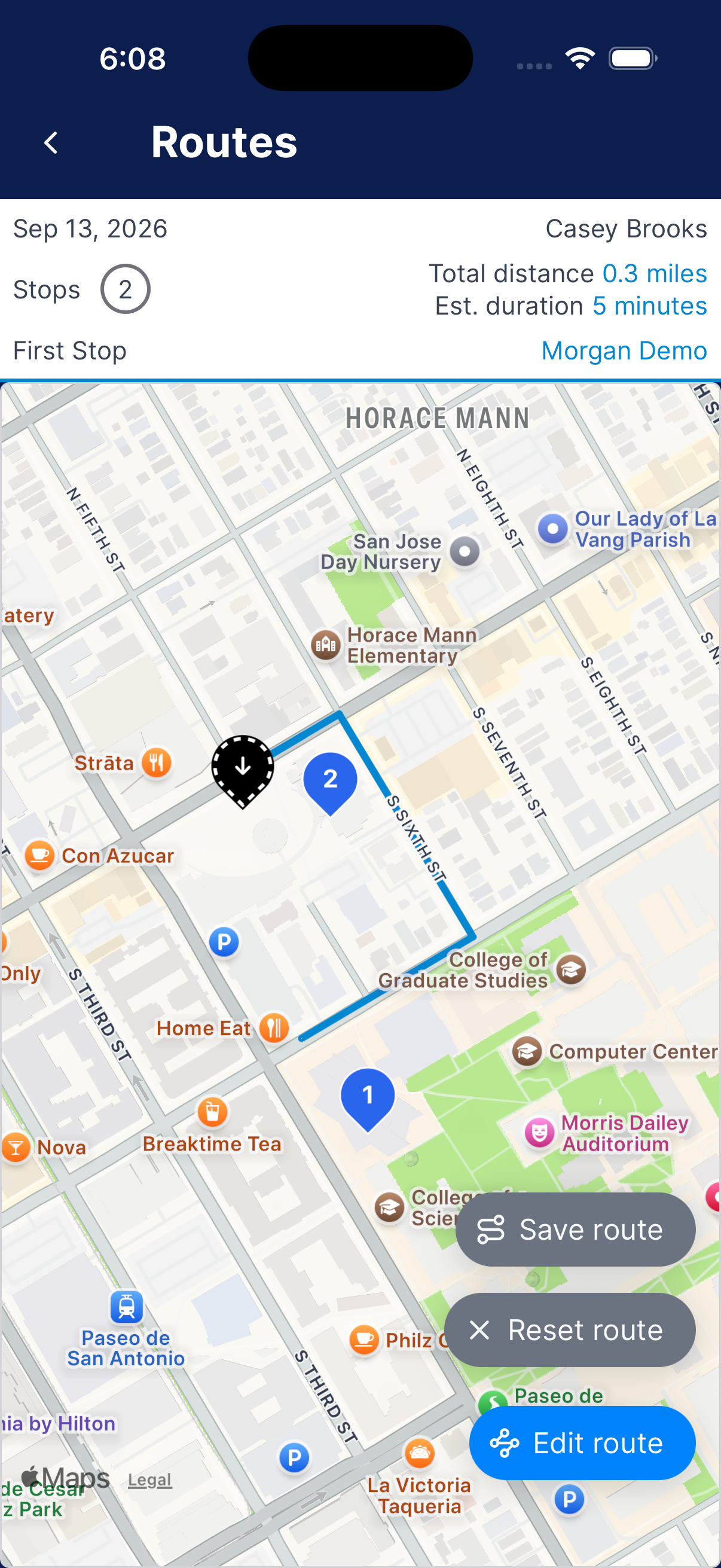
The map shows that technician’s stops for the day. Tap a stop’s marker for options like Set Start and Set End.
The route line only shows once the day has a start and an end.
Set both the start and end
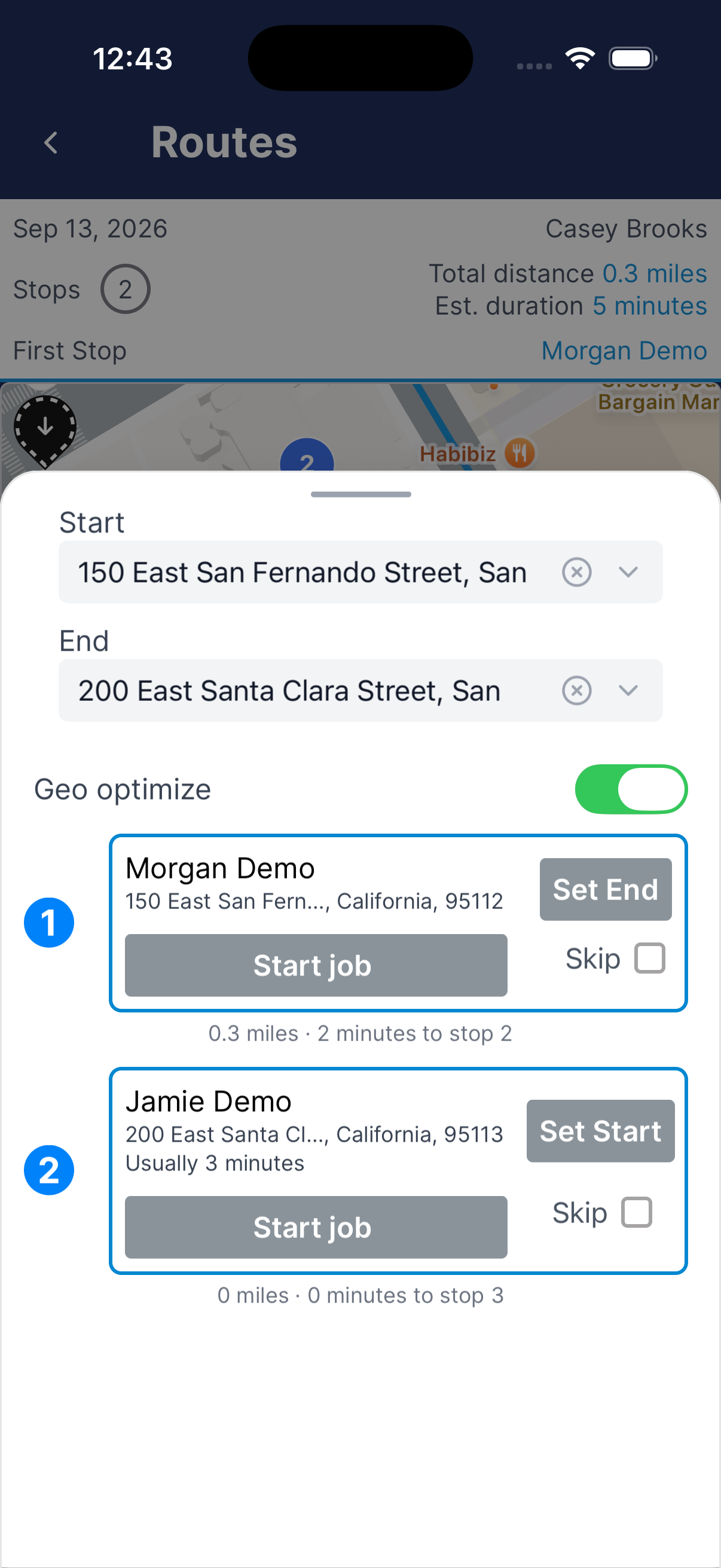
Tap Edit route. Enter an address for Start and End, such as your shop or home. Or tap Set Start on the first stop and Set End on the last one.
Choose the order
Turn on Geo optimize and Dip works out an order for you. To set the order yourself, press and hold a stop and drag it. That turns Geo optimize off.
To leave a stop off this route, select Skip on it.
Save the route
Swipe the editor down to close it. After a moment the map shows the road line, the stop numbers, and the total distance and drive time. Zoom out if a stop is off the edge.
To use this order again, tap Save route, then Save.
Reset a saved route
Reset route clears the start, the end, and the stop order you saved.
Open the route
From Schedule, choose the date and technician, then tap Routes.
Choose Reset route
Tap Reset route. Dip asks Reset the route?
Tap OK
Tap OK to reset it, or Cancel to leave it alone. The route line won’t show again until you set a new start and end.
Need a hand?
Why can’t I edit the route?
Your manager has route editing turned off for technicians. They can turn on Enable technician route management under Business → Settings.