
Before your route, open the app while connected so your current schedule is loaded.
Watch the connection status
If Dip goes offline, keep working on the job report. Account, billing, and reminder actions may need a connection.
Submit the report once
Finish the report normally. The app can save it on your phone until it can upload.
Check Business → Reports
Open Reports to see saved service and work-order reports. Look for Ready to upload, Upload failed, or upload-progress.
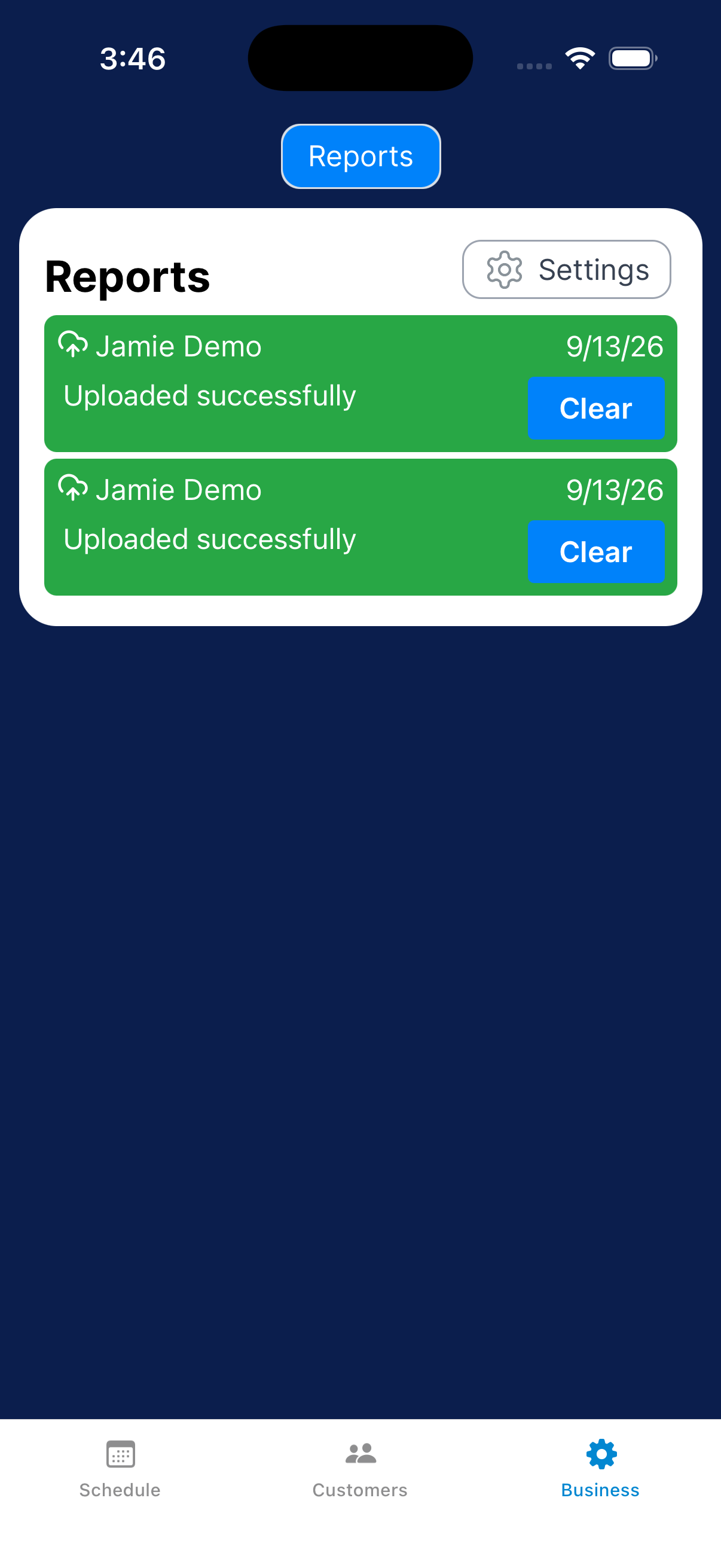
Retry after reconnecting
Reconnect and keep Dip open. Tap Upload beside a Ready to upload or Upload failed report.
The Upload button above the list retries all eligible reports. Check the new status.
If the report still won’t upload
Keep the local report. Give your manager the customer, visit date, and upload status.
If you manage the business, include those details when you contact Dip support.
What the upload status means
Use the customer and visit date to find the right report.
| What you see | What to do |
|---|---|
| Ready to upload | Reconnect and tap Upload if the report is still waiting. |
| Upload progress | Keep Dip open while the upload completes. |
| Upload failed | Restore the connection, then use Upload and check the new status. Keep the local copy. |
| Uploaded successfully | The report uploaded. Do not submit the visit again. |
| No reports saved locally | No reports are saved on this phone. Check the customer’s report history if you need to confirm a visit. |
What happens next?
A report marked waiting or failed needs attention. If the local list is empty, check the customer’s report history to confirm a visit.