
Have the email address on your Dip account. Forgot your password? Start with the section below.
Sign in to an existing account
Already have a Dip login? Start here.
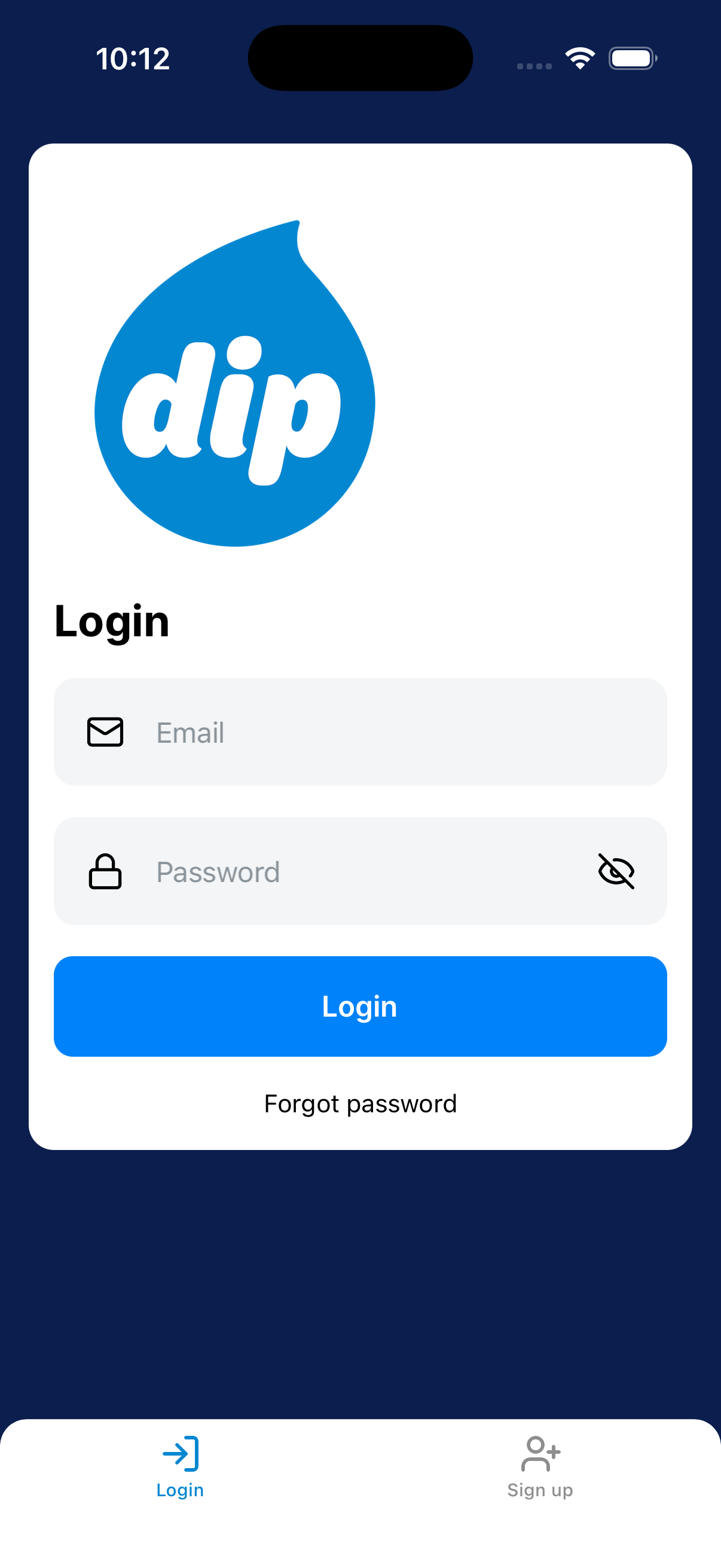
Enter your credentials
Enter your email and password. Tap Login.
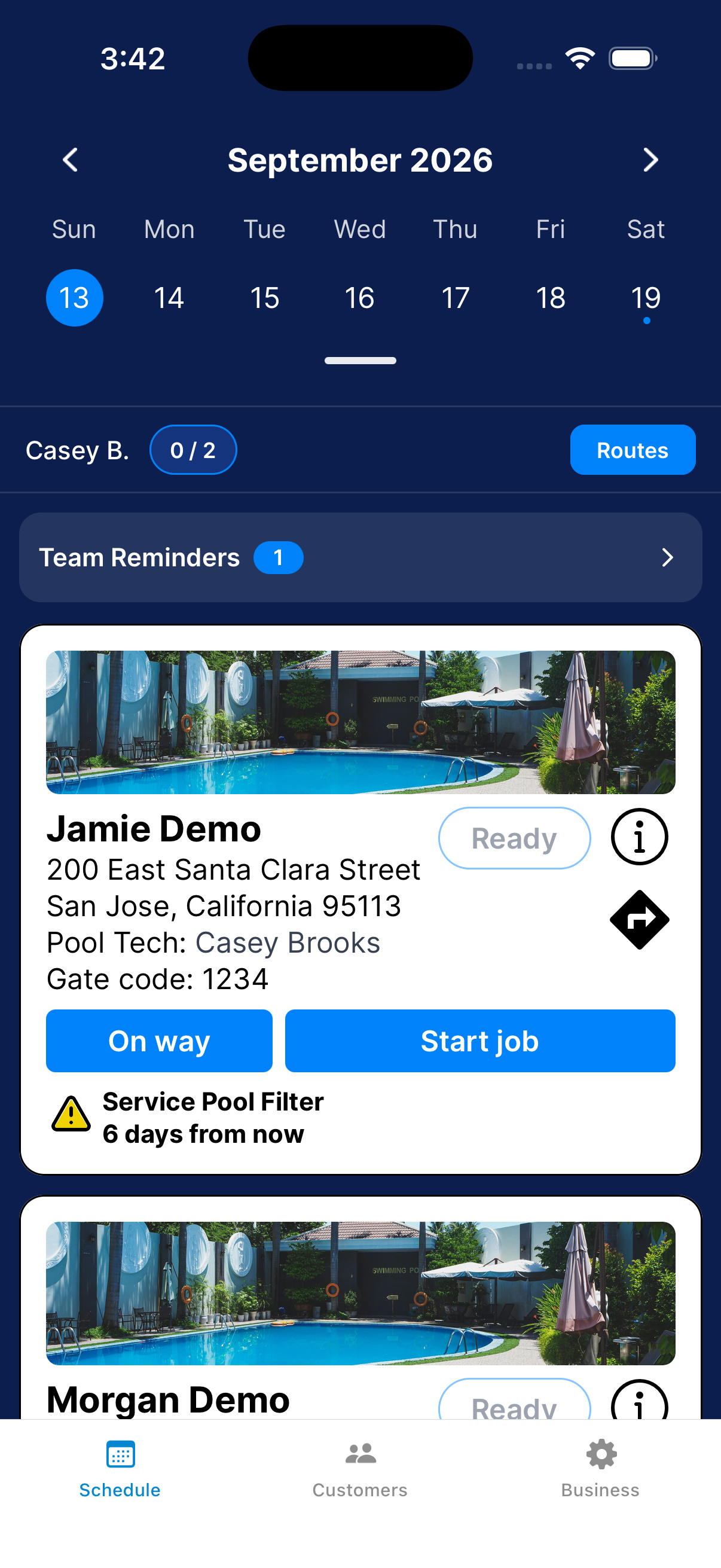
Wait for Schedule to load.
Check the account and date
Check the date. Technicians should see their own jobs.
If a job is missing, ask your manager to check the company connection.
If you forgot your password
Recover your account instead of registering again.
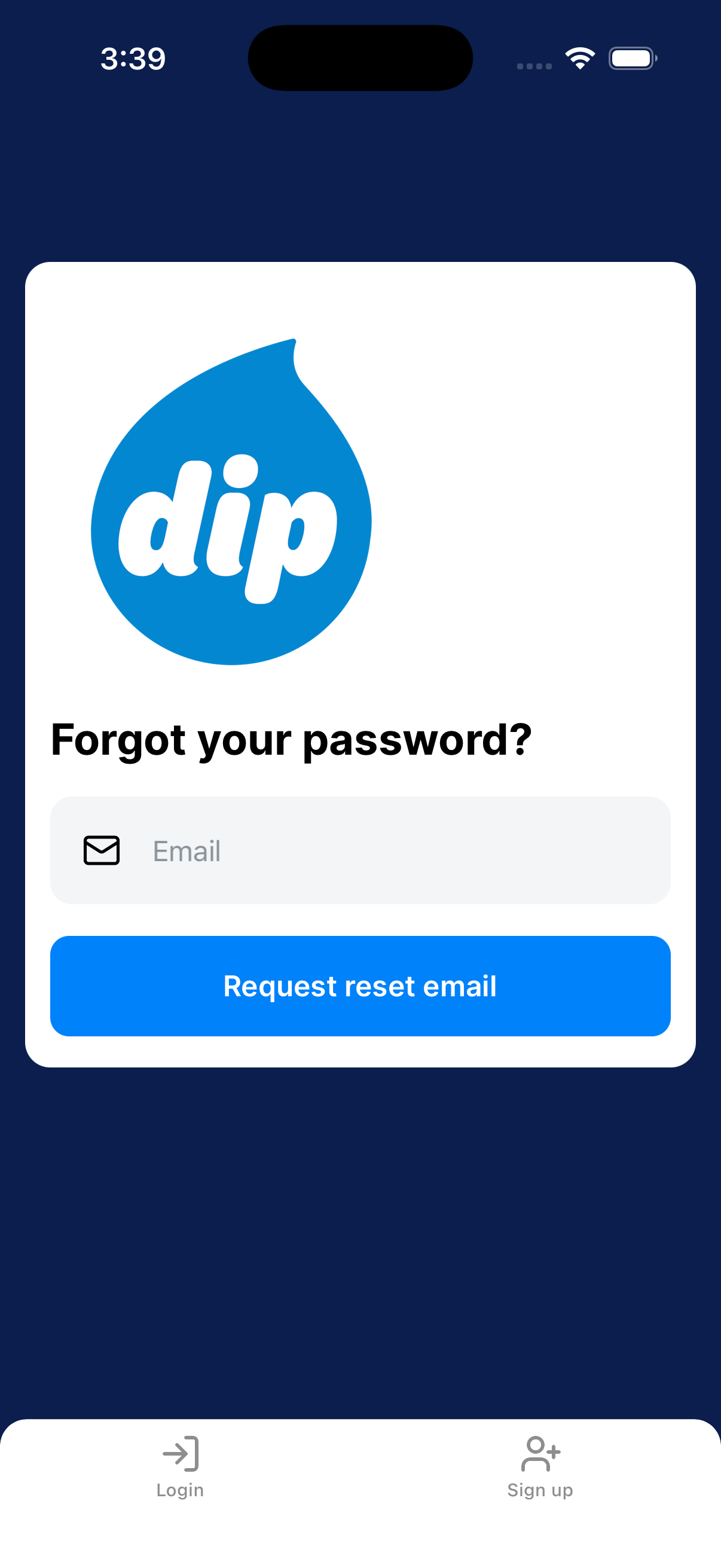
Request the reset email
From Login, tap the forgot-password link. Enter your email and tap Request reset email.
Reset and sign back in
Open the email and follow the link. Choose a new password.
Check spam if you don’t see it. Return to Dip and sign in.
Update your name, phone, or time zone
These details belong to you. Change business details in Business Settings.
Edit Account Settings
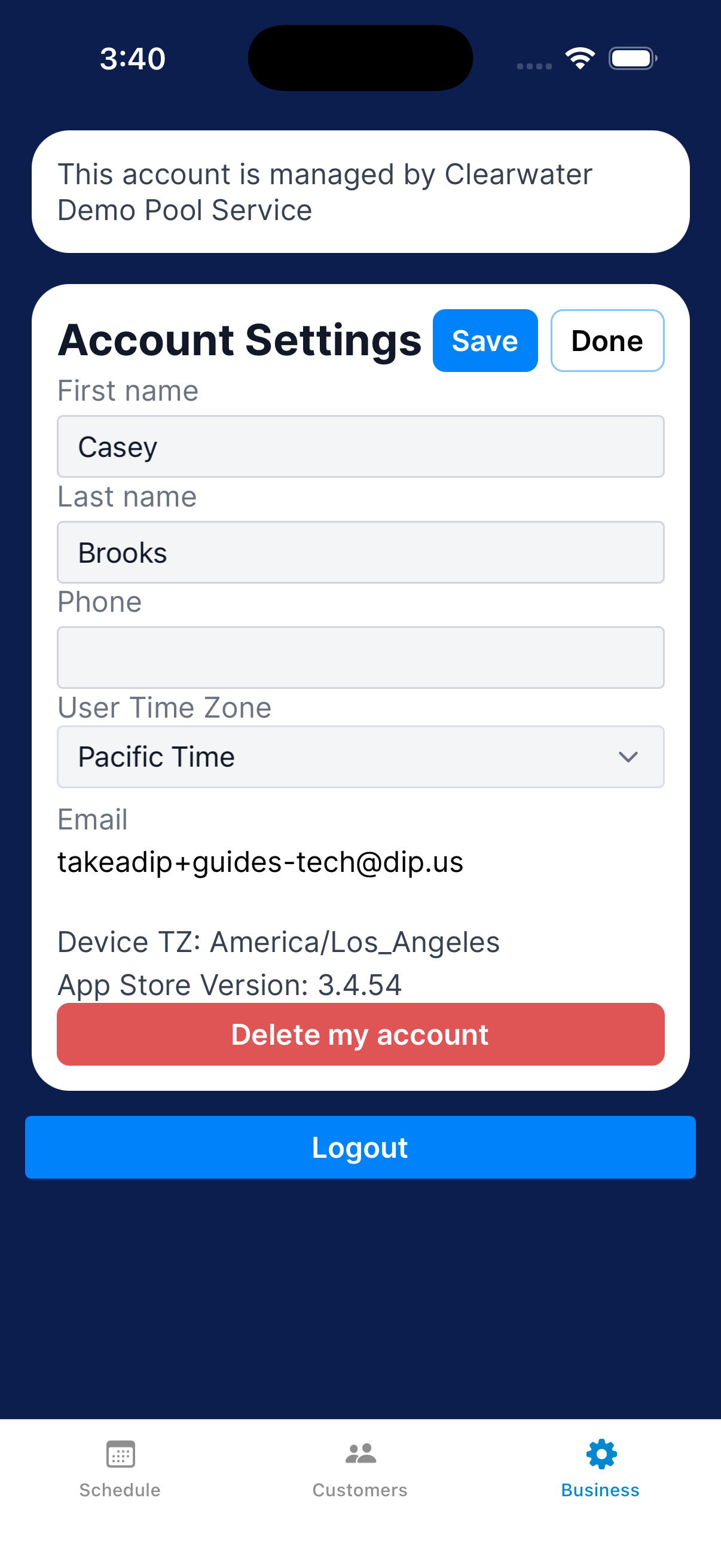
Go to Business → Settings. Operators: scroll to Account Settings.
Technicians: it’s already visible. Change your name, phone, or User Time Zone.
Tap Save.
Log out safely
Use this to switch accounts or sign out on this device.
Log out from Account Settings
Go to Business → Settings. Scroll to the bottom of Account Settings and tap Logout.
Dip returns to Login. If you are switching accounts, sign in with the other account.
Close your account
Delete your account from Account Settings.
Review the account-deletion confirmation
Go to Account Settings → Delete my account. Read the message.
Tap Cancel to keep the account.
Need a hand?
My schedule is empty. What should I check?
Check the date first. If you’re a technician, ask your manager to check the company connection and your service assignments.
The reset email hasn’t arrived. What now?
Look in your spam folder. Check the address matches the one on your Dip account.