
Dip turns on Smart Mail for your business. If Customers has no envelope at the top right, email support@thedip.app.
A customer gets Smart Mail only at an address with Smart Mail checked.
Send an email
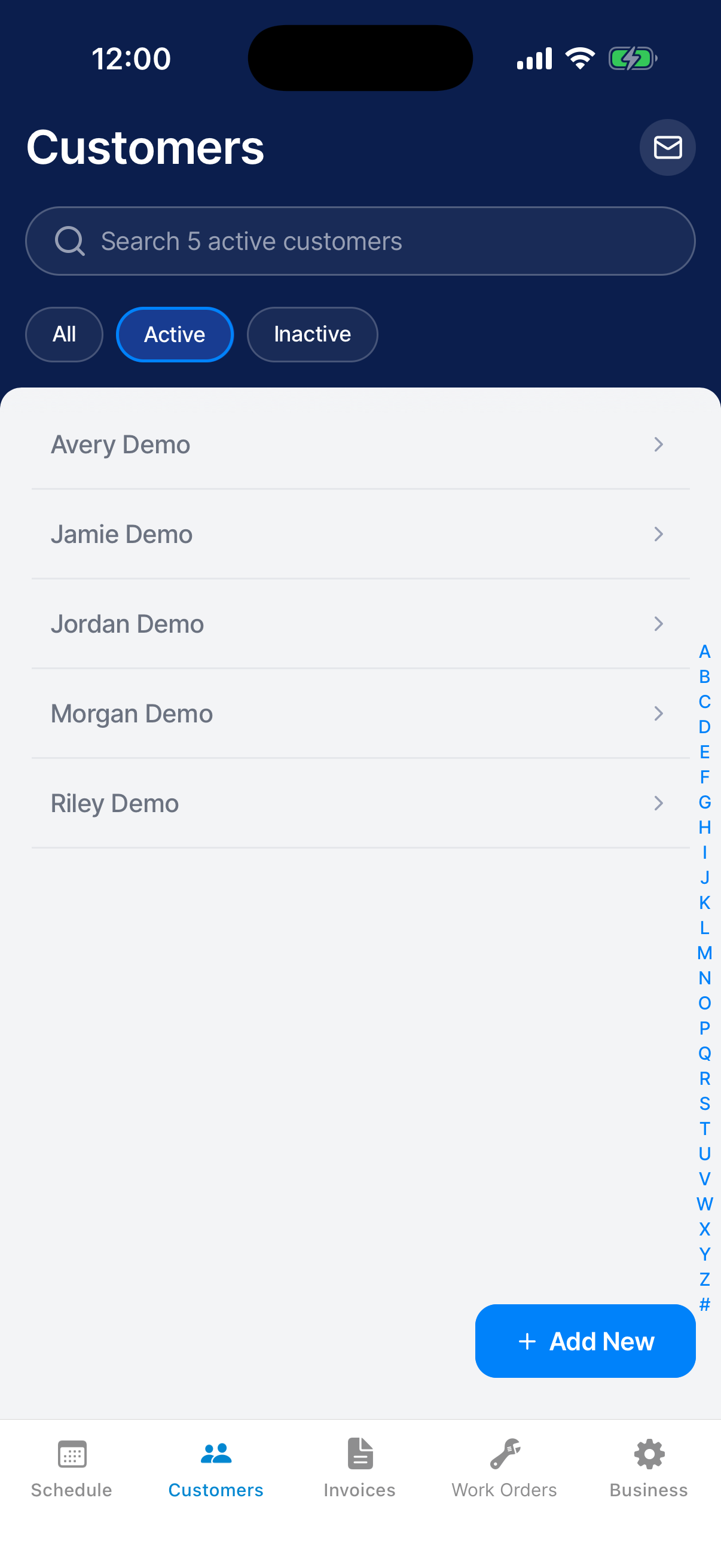
Tap the envelope
Open Customers and tap the envelope at the top right.
The envelope doesn’t respond while you’re offline.
Pick who gets it
Tap each customer you want. Select All picks everyone in the list.
Search by name, or tap All, Active or Inactive to narrow the list. The top of the screen counts who you picked.
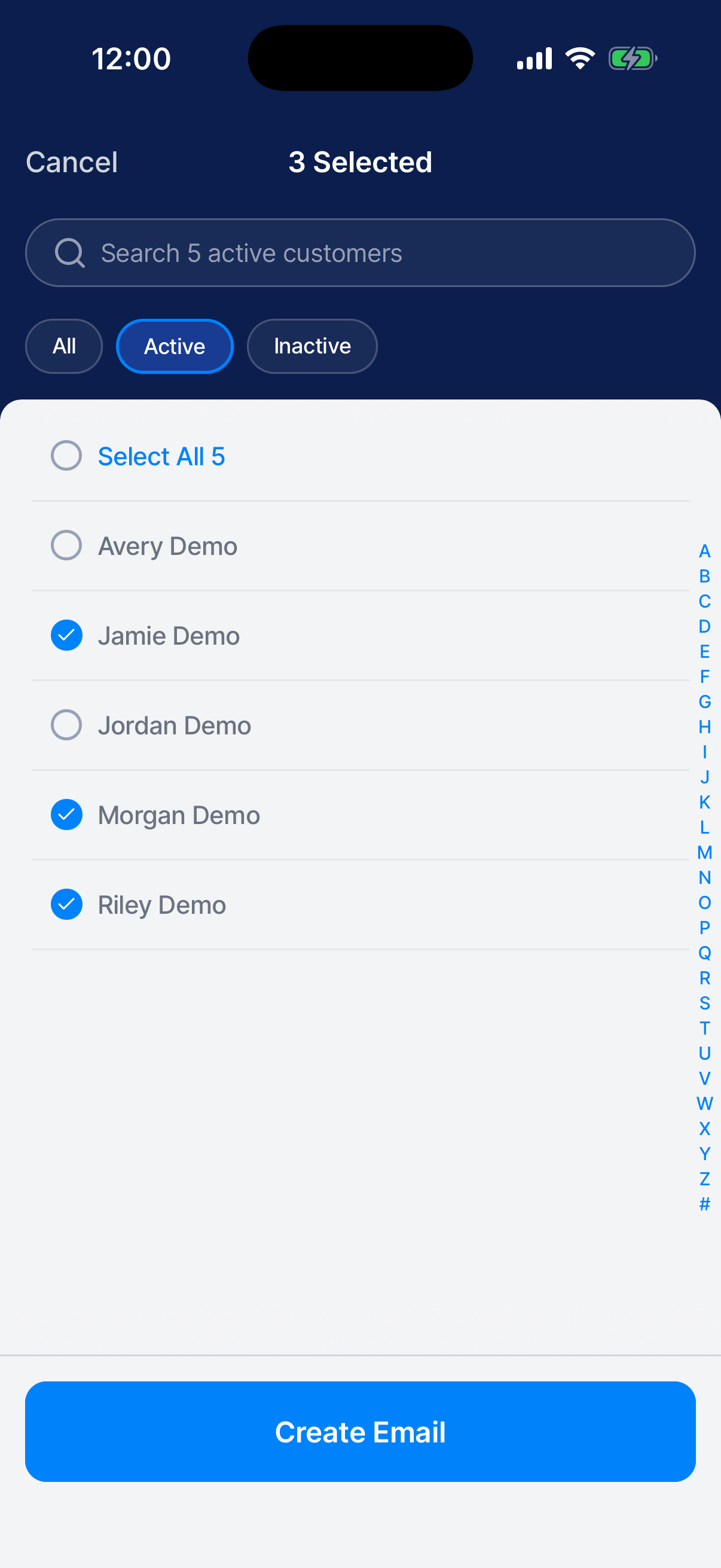
Tap Create Email
Create Email shows up once you pick someone. Tap it to open New Message.
Write the subject and message
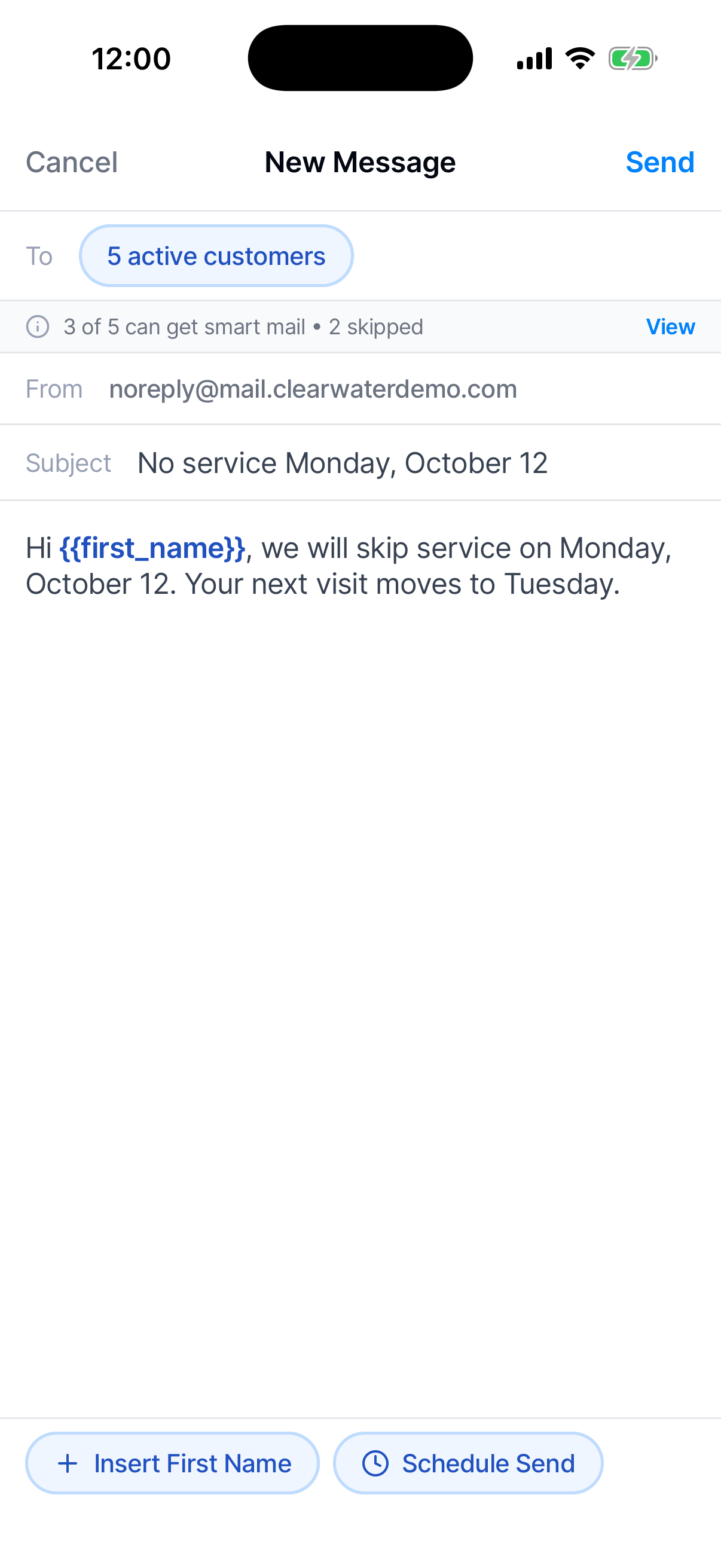
From shows the address your email comes from. Add a subject, then type your message.
Tap Insert First Name to add {{first_name}} where you’re typing. Each customer sees their own first name there.
Tap Send
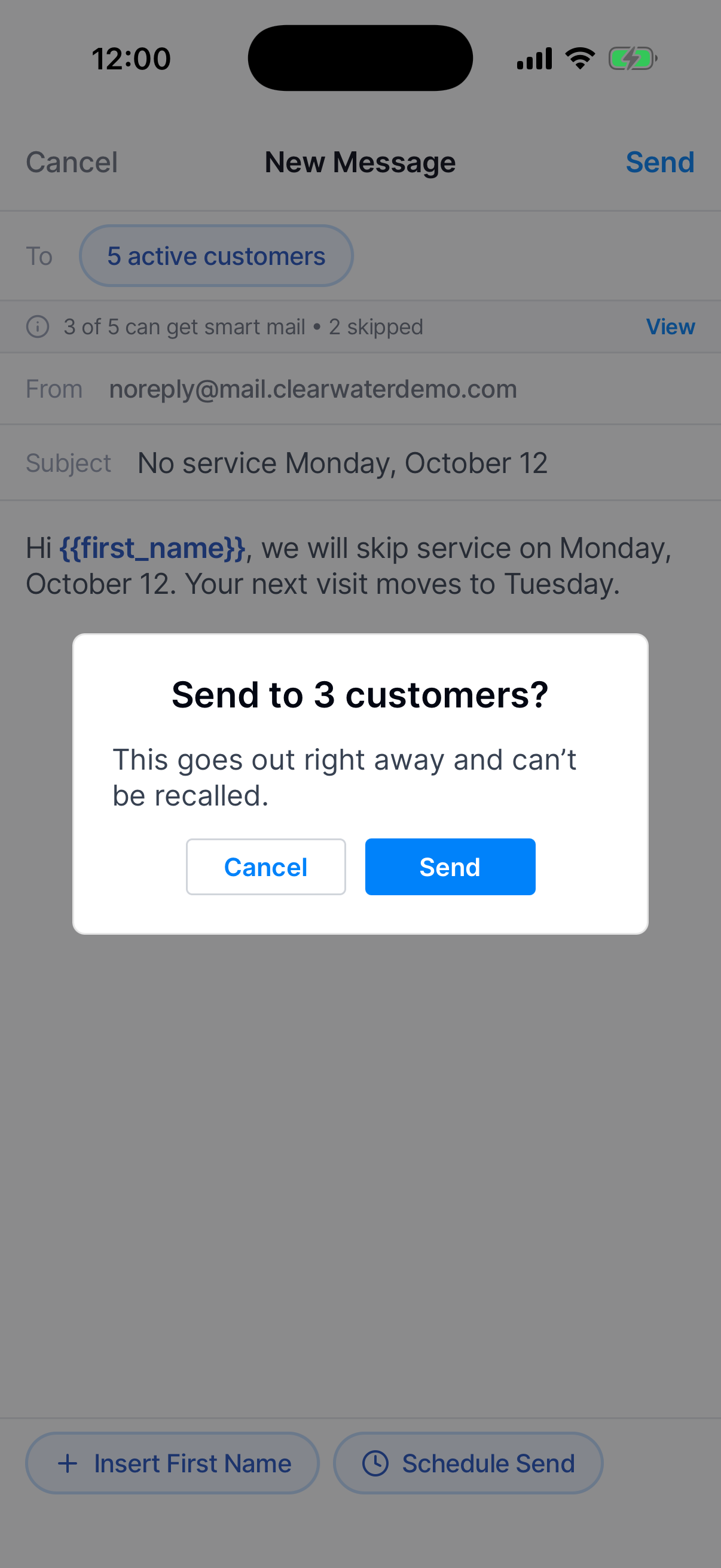
Tap Send at the top right. The confirmation says how many customers it’s going to. Tap Send again to send it.
Schedule an email for later
Write the email the same way, then pick when it goes out.
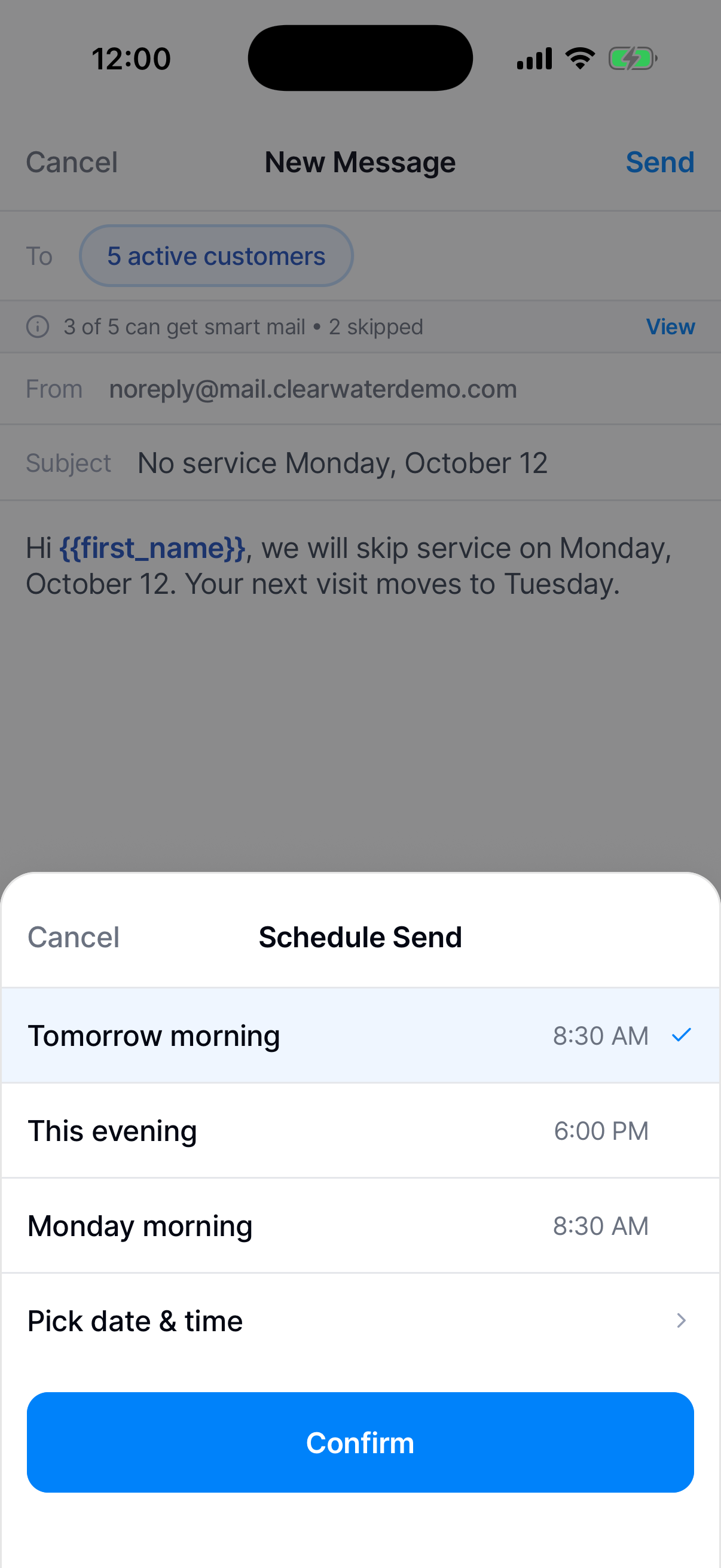
Tap Schedule Send
On New Message, tap Schedule Send at the bottom.
Pick a time
Choose Tomorrow morning, This evening or Monday morning. For another time, tap Pick date & time. Then tap Confirm.
A time that has already passed isn’t offered.
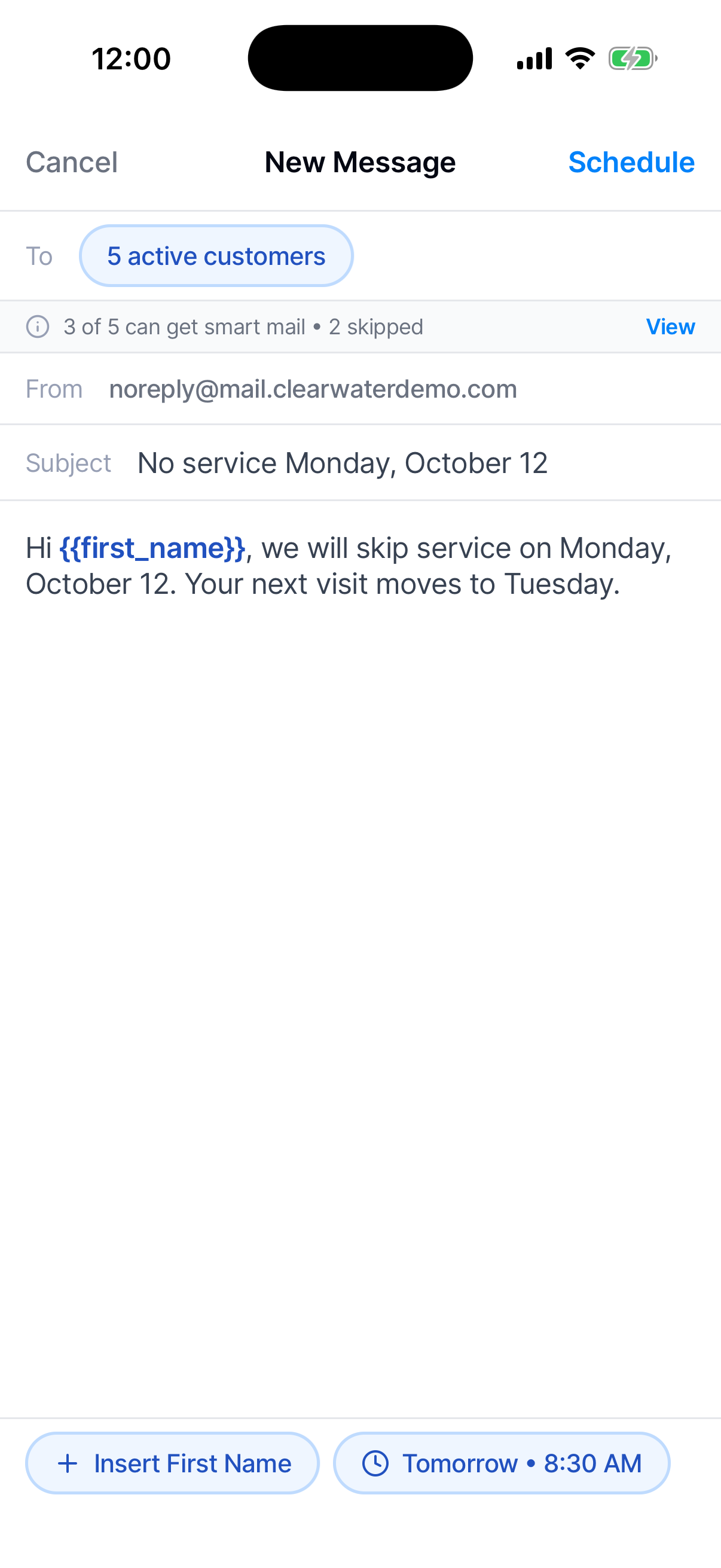
Tap Schedule
The top-right button now says Schedule. Tap it, then tap Schedule again in the confirmation.
To send it right away instead, tap the time at the bottom. Choose Send now and tap Confirm.
Reach customers who were skipped
Dip skips a customer with no email, or with Smart Mail off on every address.
Open the skipped list
On New Message, a line under To says how many were skipped. Tap View.
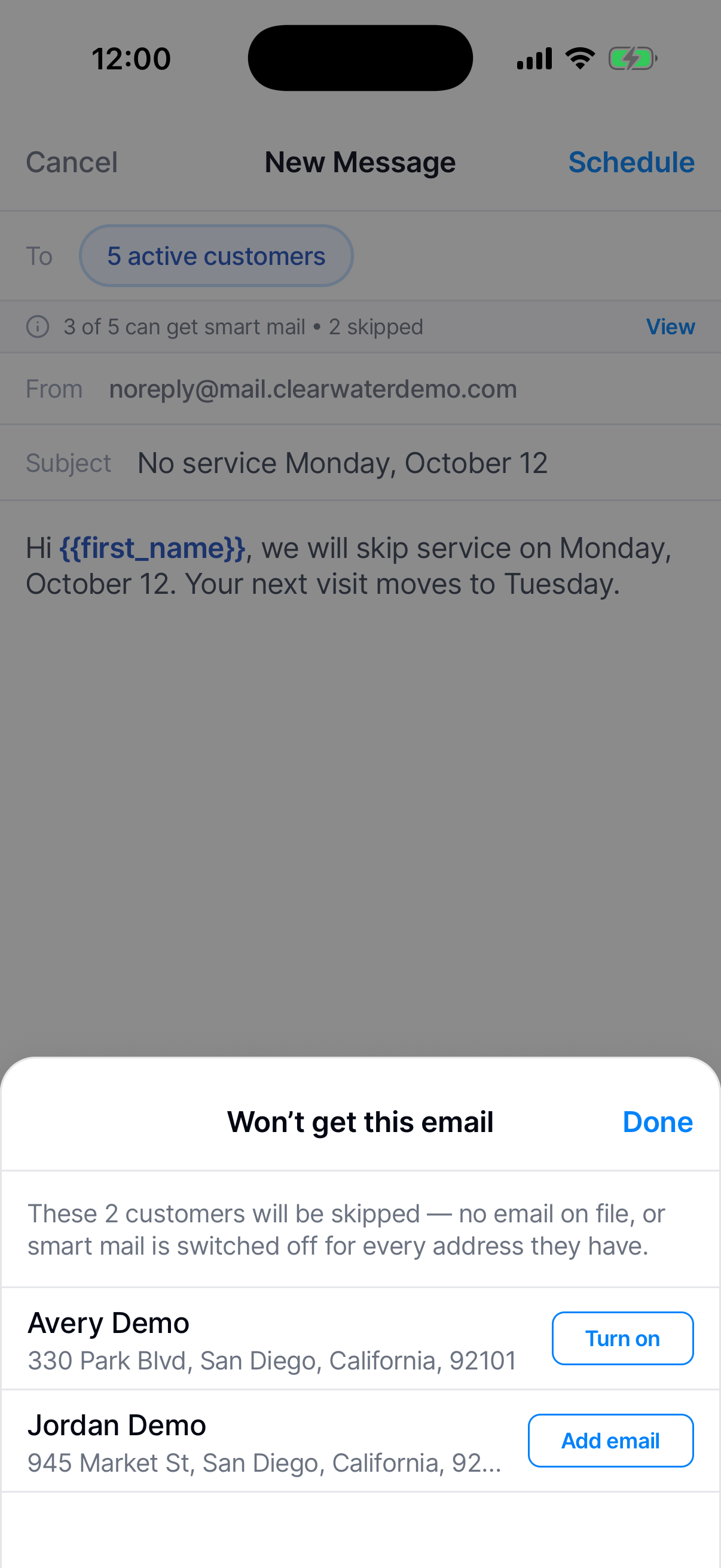
Add an email or turn Smart Mail on
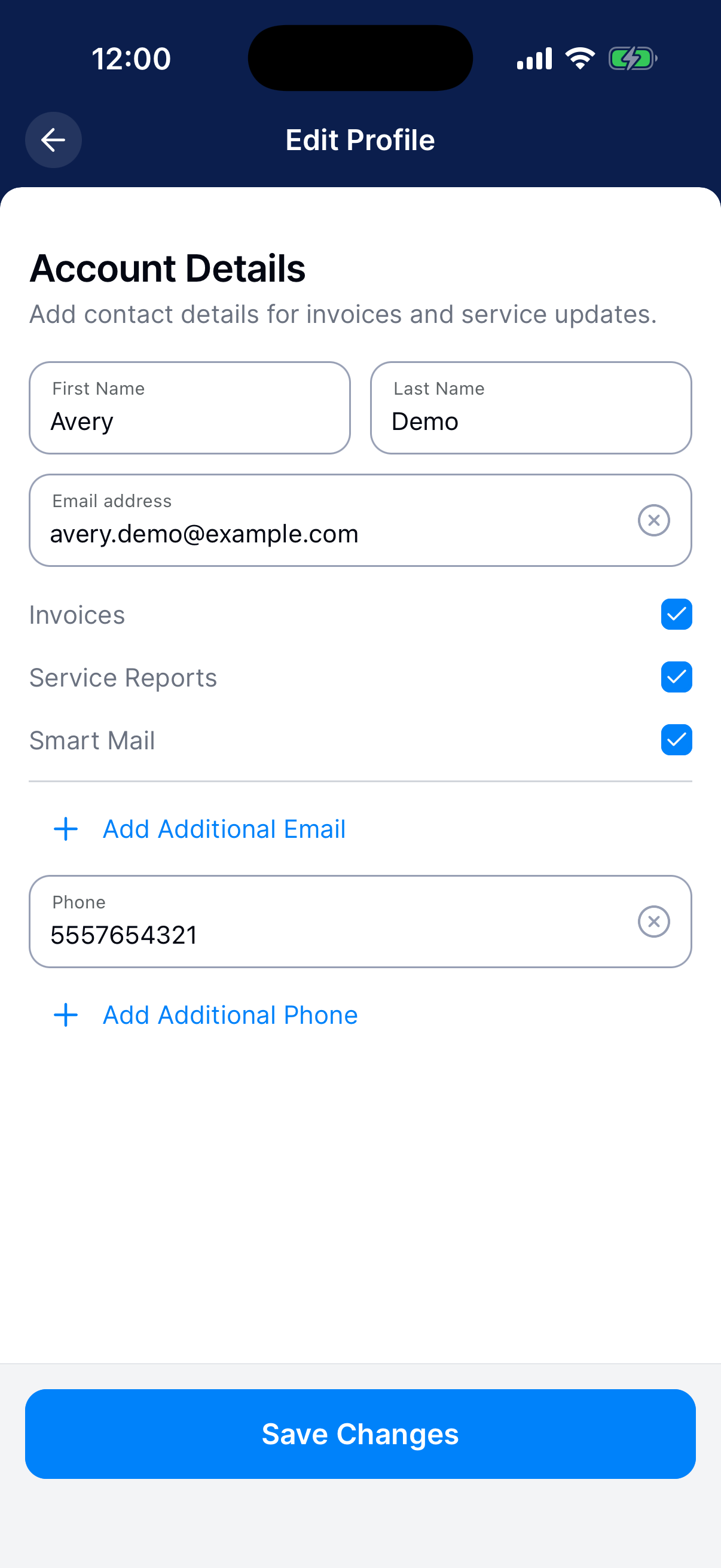
Tap Add email for a customer with no email. Tap Turn on for one who has Smart Mail off. Either one opens their profile.
Tap the pencil on Account Details. Add the address or check Smart Mail under it, then tap Save Changes. See Edit customer details, photos, and app access.
What happens next?
Each address gets its own copy. Customers don’t see who else got it.
Need a hand?
There’s no envelope on Customers. How do I get it?
Sending Smart Mail takes its own permission, and Dip turns it on. Email support@thedip.app.
From says there’s no sending address yet. What now?
Dip is still setting up the address your email comes from. You can’t send until it’s ready. Email support@thedip.app to check on it.
Can I cancel a scheduled email?
Not in the app. Once you tap Schedule, it goes out at that time.
A customer says they never got it. Why?
Smart Mail has to be checked under that address in their Account Details. Dip also stops sending to an address that bounced, unsubscribed, or marked earlier mail as spam.