
Connect to the internet before you save a reminder.
Create a reminder
Add enough detail for a teammate to understand the job.
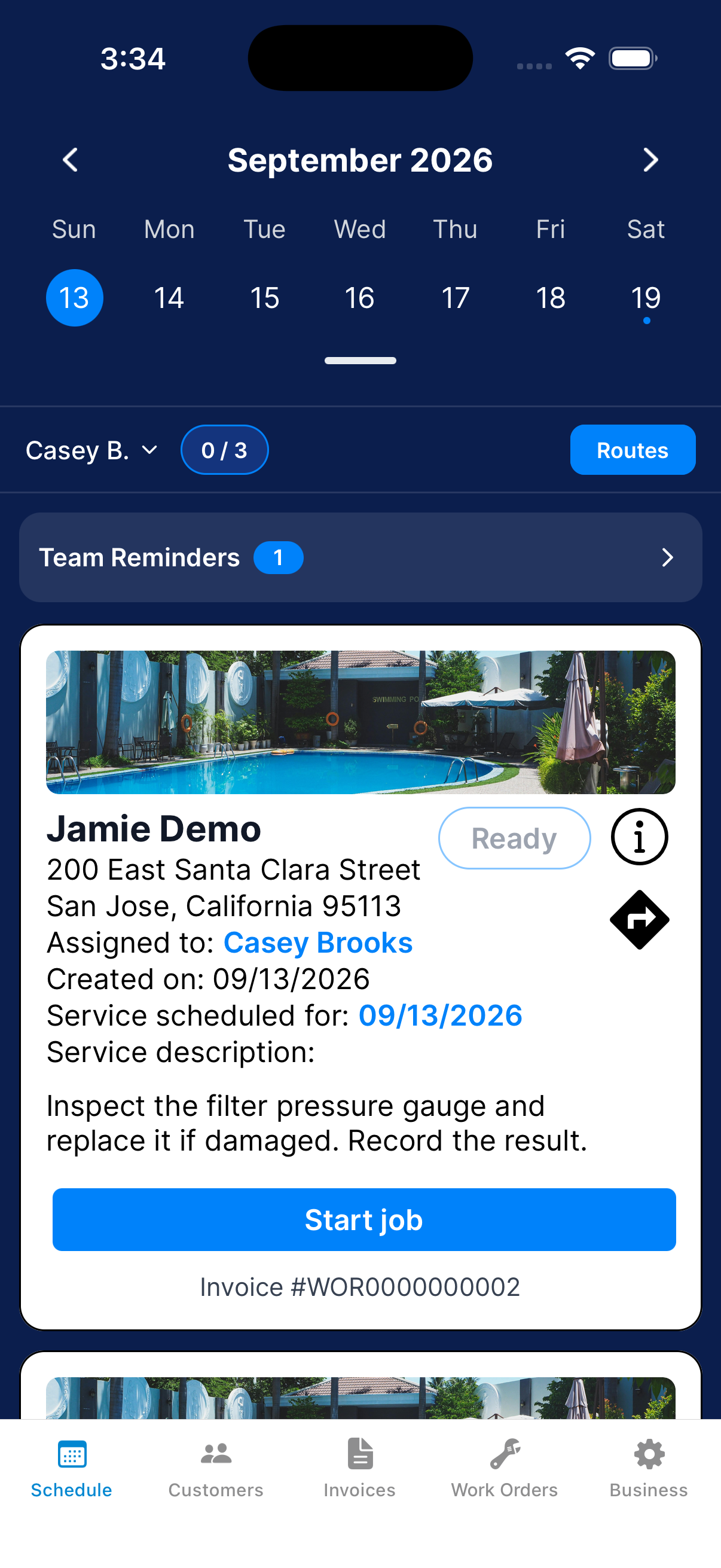
Open Team Reminders
On Schedule, tap Team Reminders.
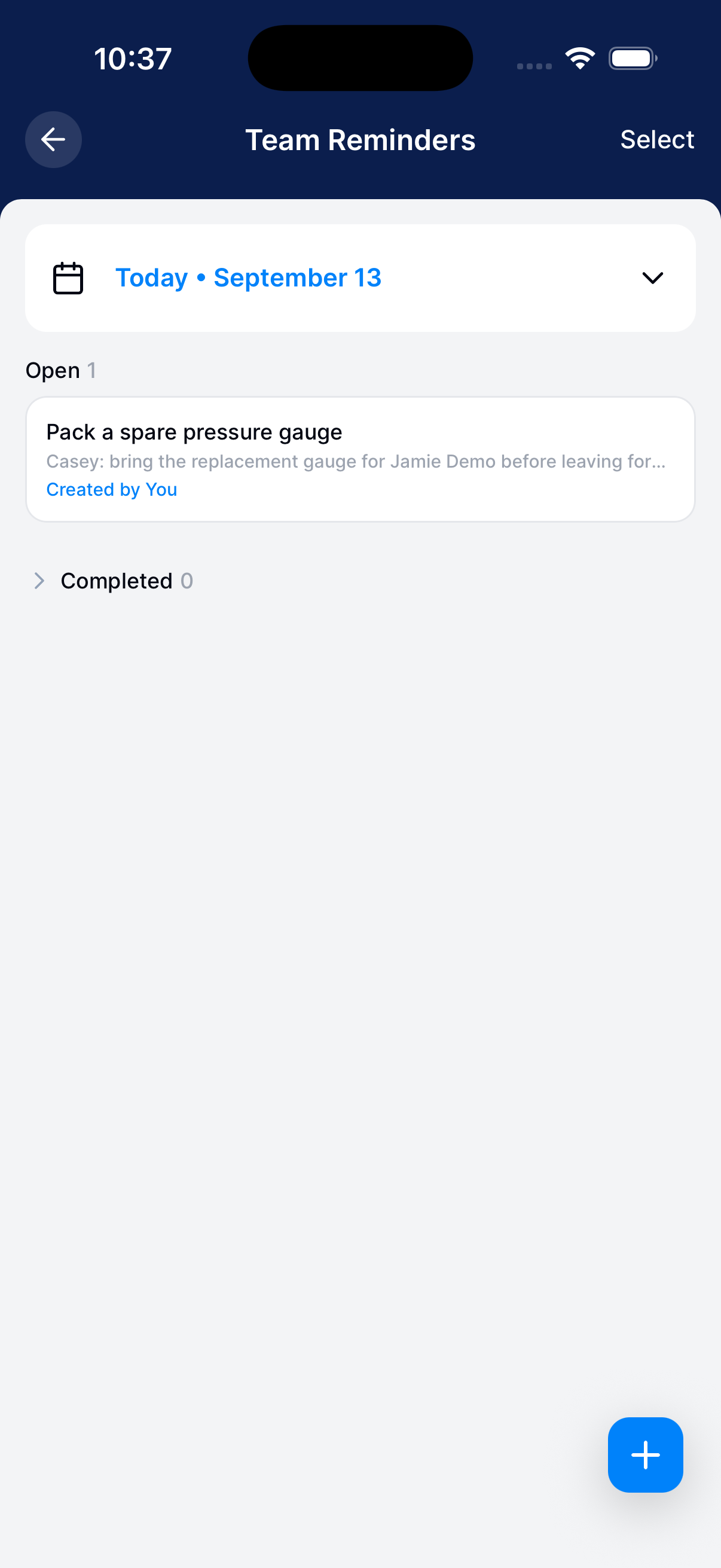
Start a reminder
Tap the + button at the bottom right.
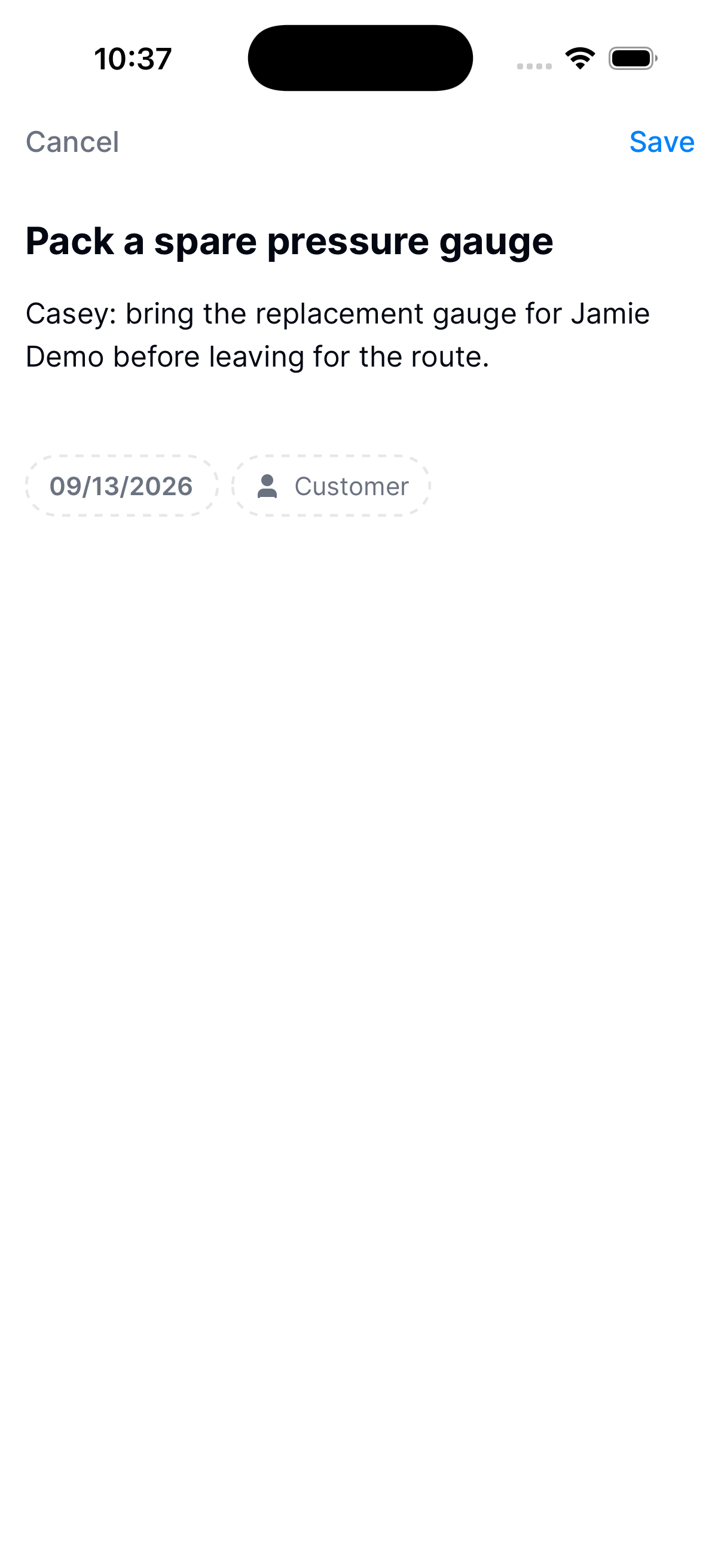
Add the details
Enter a title and notes. Choose a date and, if needed, a customer.
Save
Tap Save and confirm the reminder appears on the chosen date.
Manage an existing reminder
Open an existing reminder instead of making a duplicate.
Find the reminder
Choose its date. Show completed reminders if it’s already finished.
Read or edit it
Tap the reminder. Use Edit to change the title, notes, customer, or date.
Save your changes.
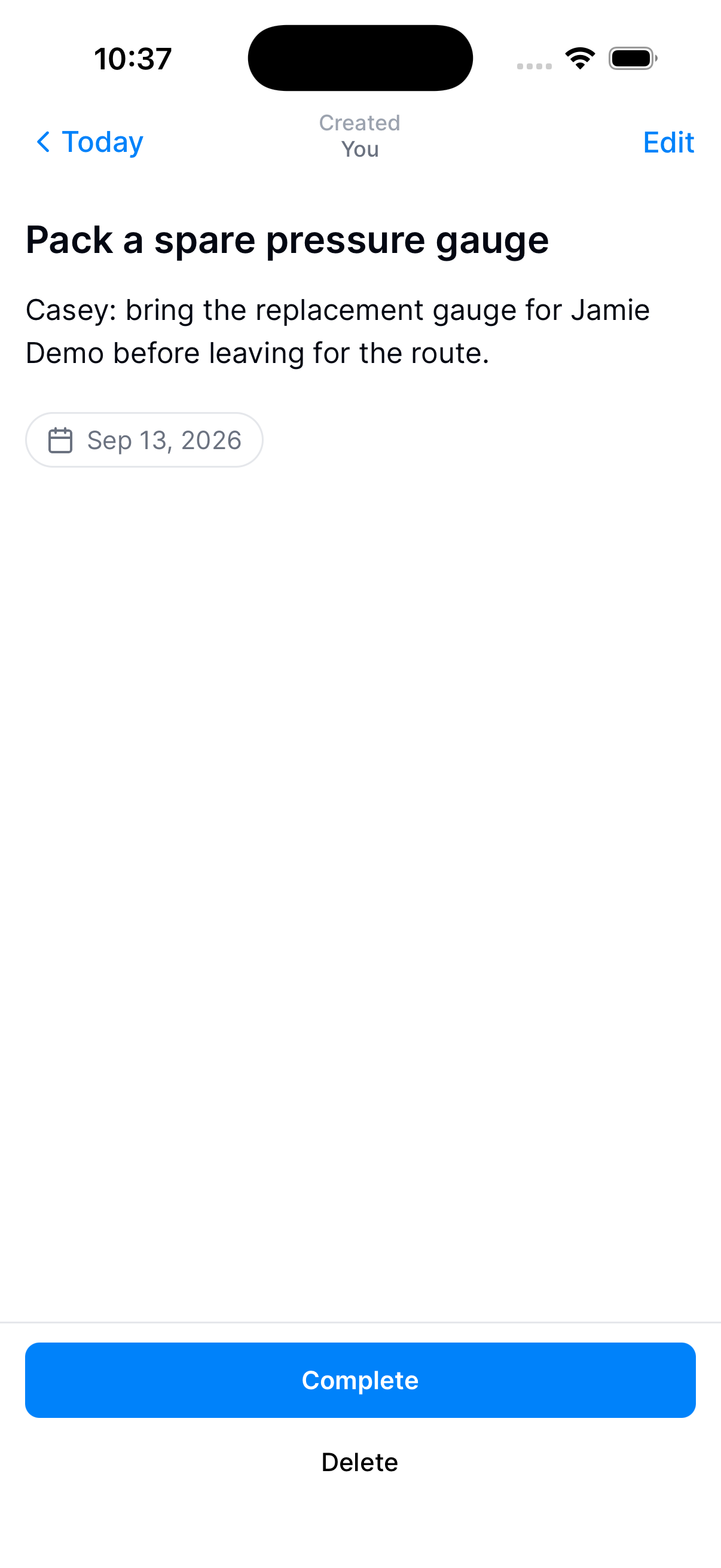
Complete or reopen it
Tap the checkbox or Complete when the job is done. Show completed items and tap Reopen if it needs attention again.
Update several reminders
Tap Select and choose the reminders. Then choose Complete, Reopen, Move to day, or Delete.
Check the selection before you continue.
Need a hand?
Where is a reminder I already completed?
Check its date and include completed reminders in the list.